> ## Documentation Index
> Fetch the complete documentation index at: https://docs.devin.ai/llms.txt
> Use this file to discover all available pages before exploring further.
# Devin で iOS アプリを構築する
> macOS VM 上で Devin を使って iOS アプリを構築する: SwiftUI コードのビルド、iOS シミュレータでのテスト、TestFlight への配信
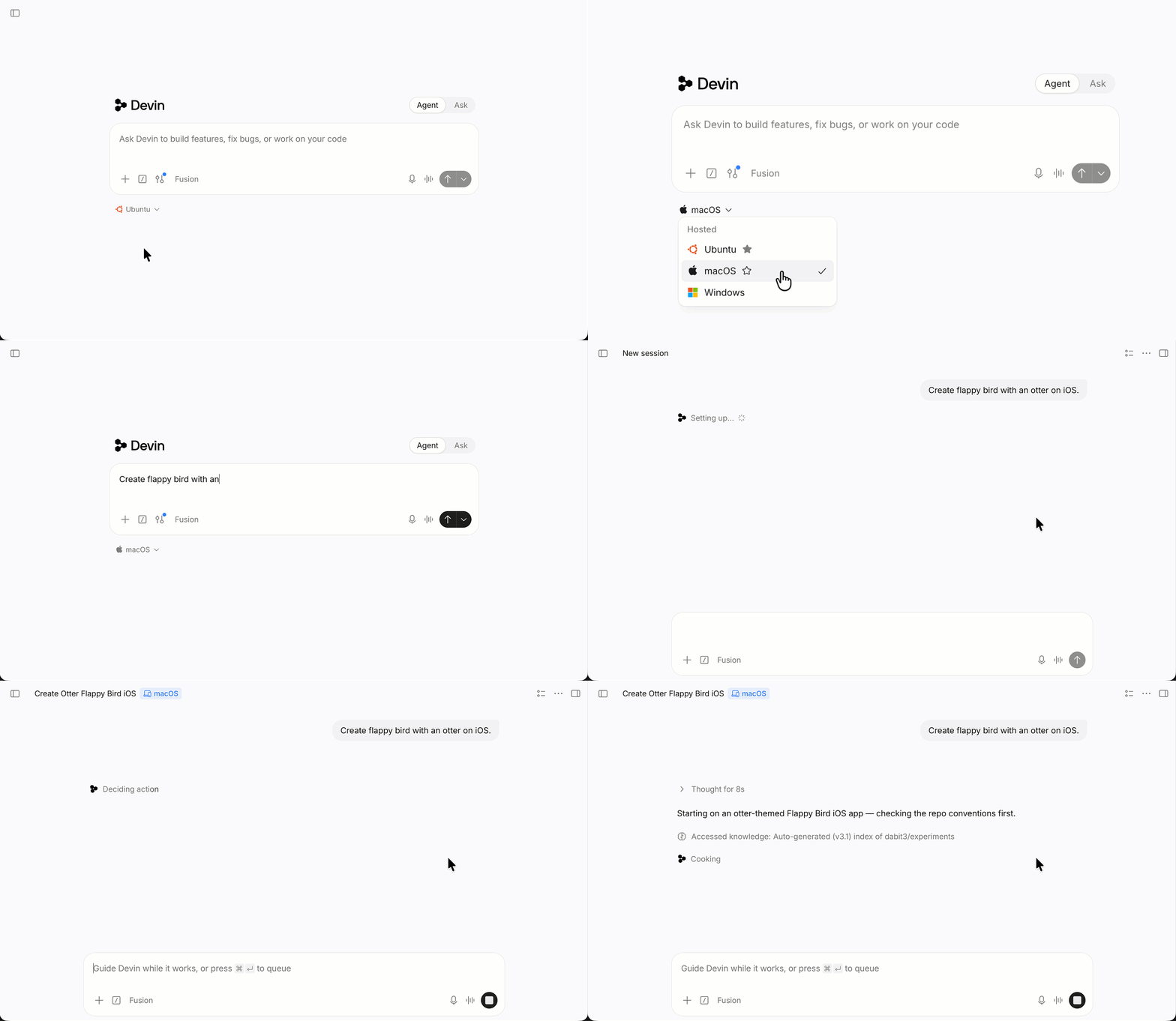
## 始める前に
Devin の [Pro または Teams](/ja/admin/billing/self-serve) アカウントをお持ちであることをご確認ください。macOS セッションはデフォルトで利用できます。
* **macOS VM の有効化**: アカウントチームに、組織で macOS VM を有効化するよう依頼してください。詳しくは [macOS サポート](/ja/onboard-devin/environment/macos-support)をご覧ください。
* **Desktop モードの有効化**: [設定 > カスタマイズ](https://app.devin.ai/customization)で **Enable Desktop モード** をオンにします。これにより、Devin がシミュレータを操作し、テストの様子を記録できるようになります。詳しくは [Computer Use](/ja/work-with-devin/computer-use)をご覧ください。
## Step 1: Devin にアプリのビルドを指示する
[Devin](https://app.devin.ai/) を開き、プロンプトボックスの下にあるプラットフォームメニューから **macOS** を選択します。Xcode、iOS シミュレータ、Homebrew はプリインストール済みです。
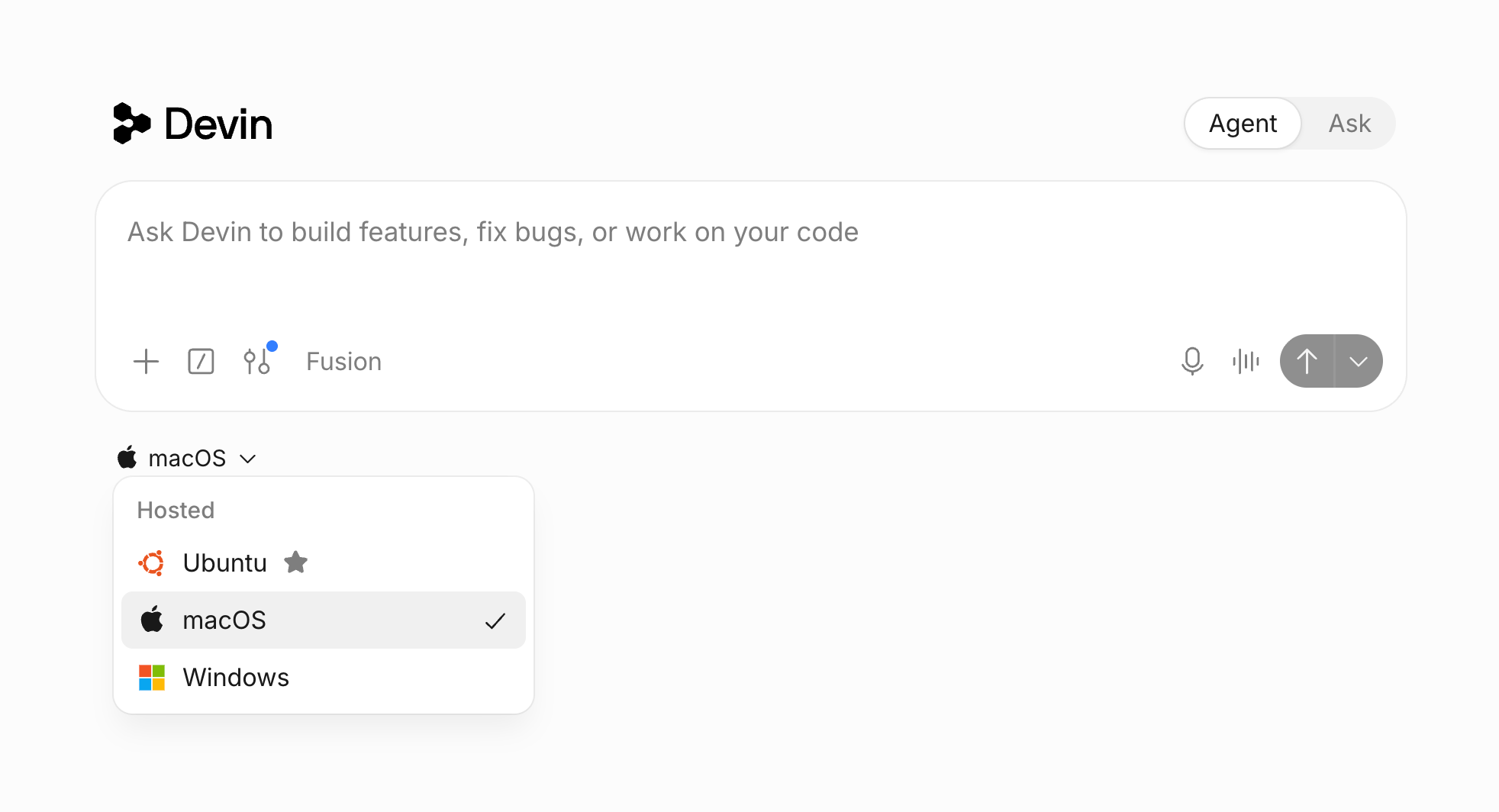 Devin にビルドしてほしいものを入力します。
```text theme={null}
iPhone 向けに flappy otter っていうゲームを作って。flappy bird みたいな感じで、鳥じゃなくてかわいいカワウソにして
```
Devin にビルドしてほしいものを入力します。
```text theme={null}
iPhone 向けに flappy otter っていうゲームを作って。flappy bird みたいな感じで、鳥じゃなくてかわいいカワウソにして
```
## ステップ2: Devin のビルドとテストを見守る
Devin は iOS 開発者と同じような流れでタスクを進めます。
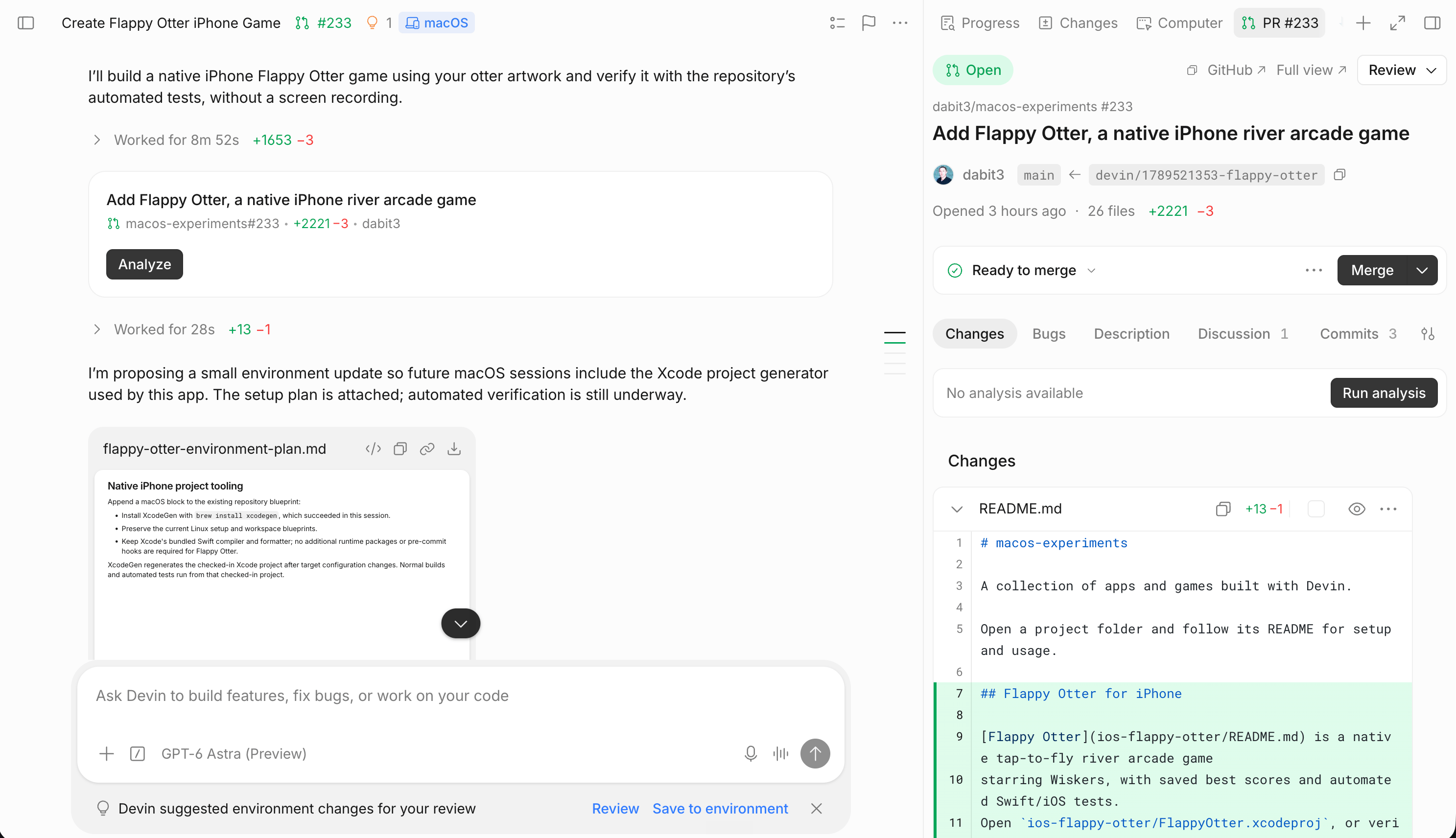 1. **Xcode でプロジェクトを作成**
2. **ビルドしてエラーを修正**
3. **シミュレータでゲームを実行**
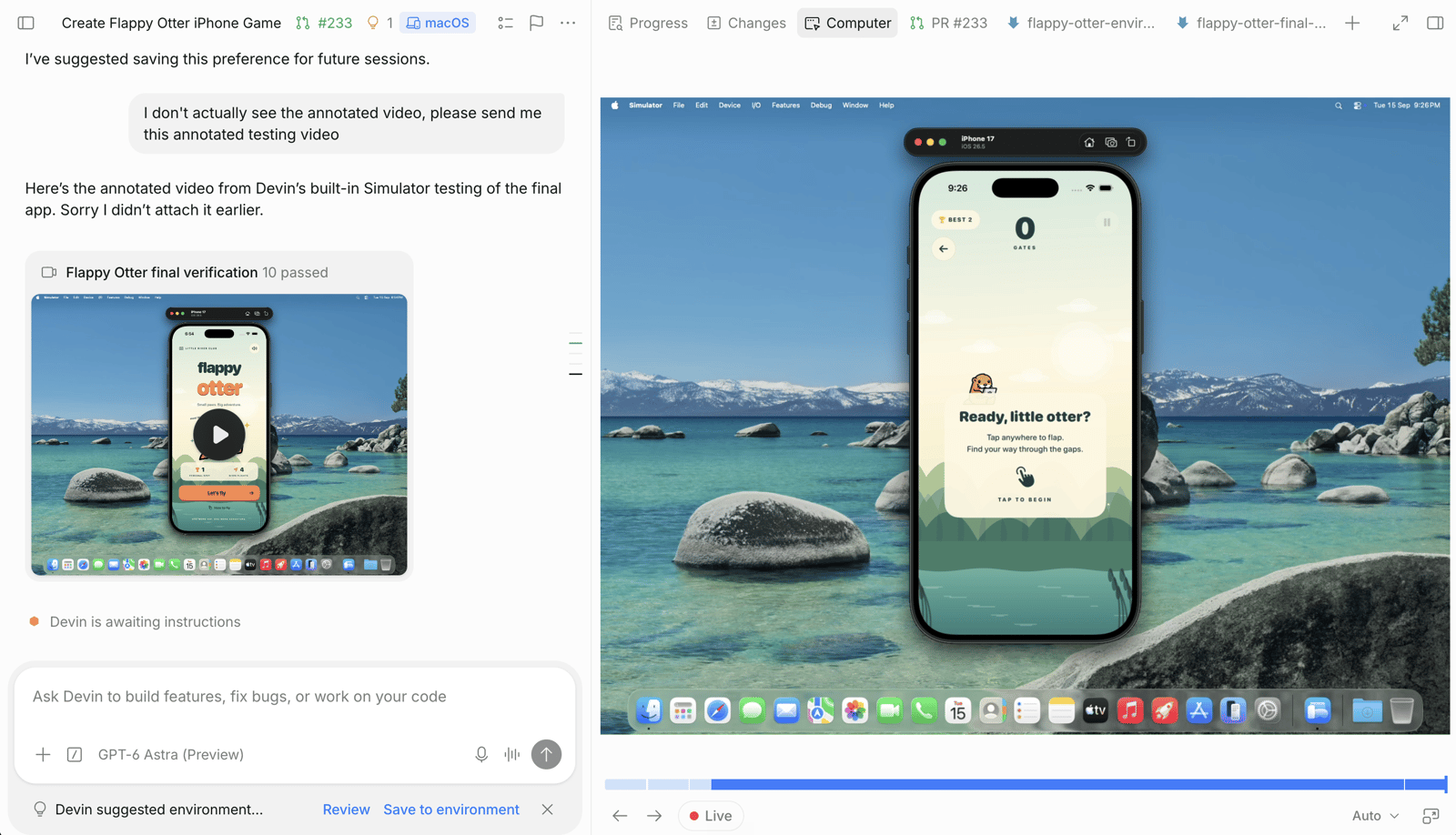
4. **ゲームをプレイ**: [Computer Use](/ja/work-with-devin/computer-use) でタップしてカワウソをジャンプさせ、スコアと衝突判定が正しく動作するかを検査したうえで、その実行を[録画](/ja/work-with-devin/testing-and-recordings)します。
5. **結果を共有**: 録画を送信し、セッションにリポジトリがあればプルリクエストを作成します。
1. **Xcode でプロジェクトを作成**
2. **ビルドしてエラーを修正**
3. **シミュレータでゲームを実行**
4. **ゲームをプレイ**: [Computer Use](/ja/work-with-devin/computer-use) でタップしてカワウソをジャンプさせ、スコアと衝突判定が正しく動作するかを検査したうえで、その実行を[録画](/ja/work-with-devin/testing-and-recordings)します。
5. **結果を共有**: 録画を送信し、セッションにリポジトリがあればプルリクエストを作成します。
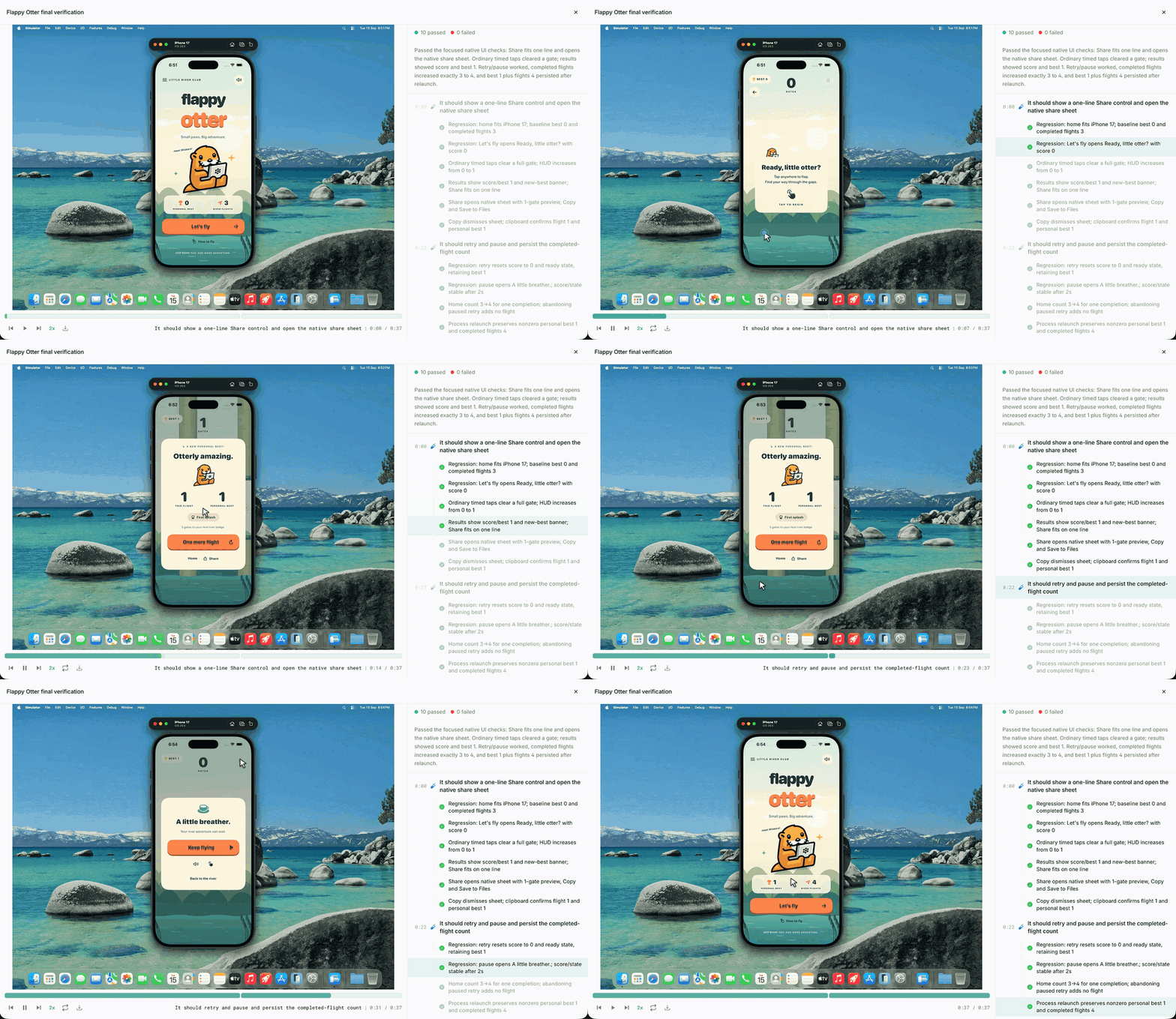 セッションのワークスペースで **Computer** タブを開くと、Devin がアプリをタップ操作する様子を、起動中のシミュレータ上でリアルタイムに確認できます。
## ステップ3: レビューと反復
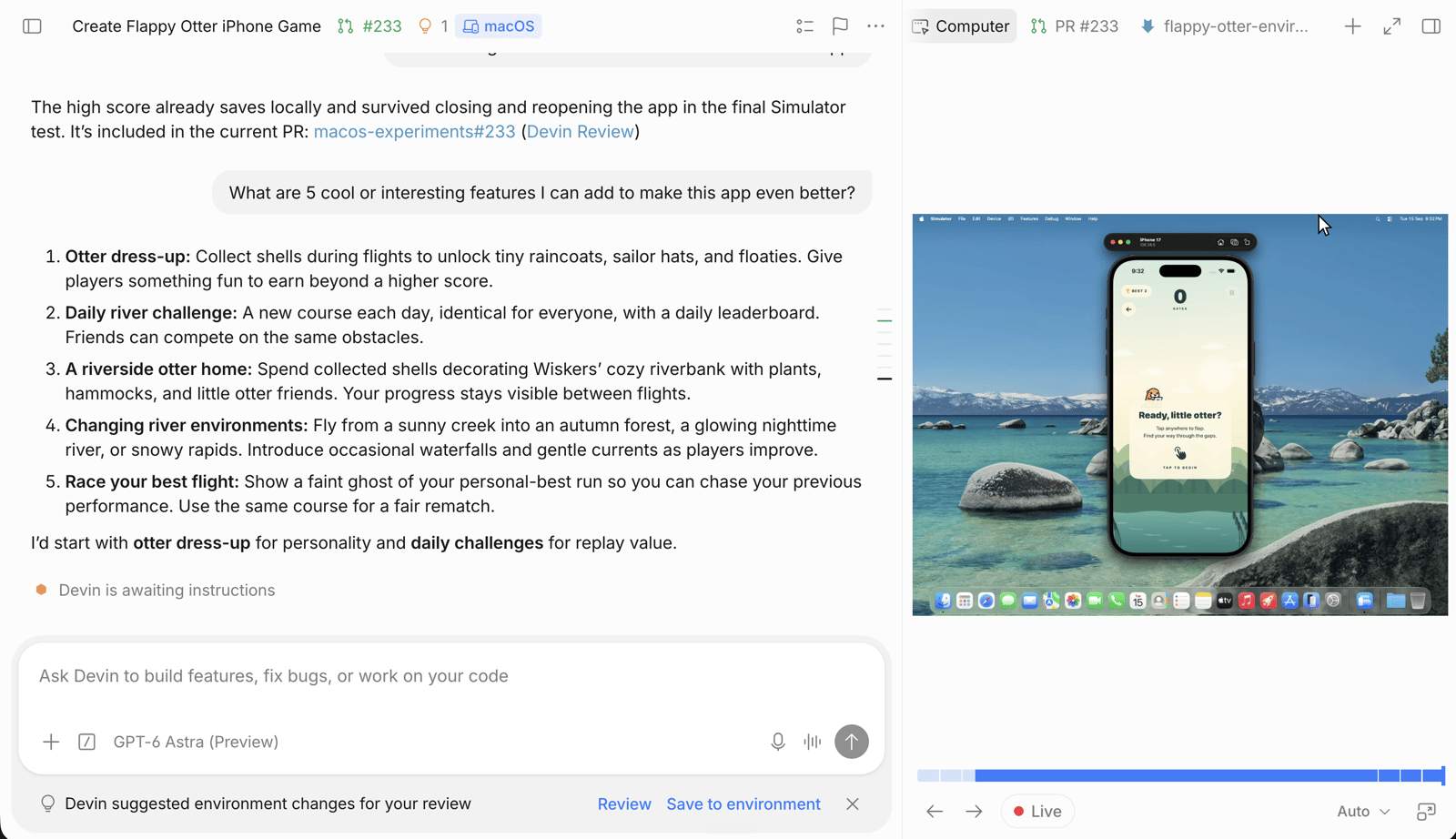
同じセッション内で機能を追加しながら開発を続けましょう。
## 任意: TestFlightにベータ版を配信する
実機のiPhoneでテストするには、[iOSビルドをTestFlightにアップロードする](/ja/onboard-devin/environment/testflight)を参照してください。
DevinのmacOS サポートについて詳しくは、[macOS サポートの制限事項](/ja/onboard-devin/environment/macos-support#limitations)を参照してください。
## 次のステップ
ビルドをアップロードするためのApp Store Connectの設定、APIキー、シークレット
macOSセッション向けのブループリント設定、プリインストール済みツール、トラブルシューティング
Devinがアプリをテストし、結果を記録する仕組み