> ## Documentation Index
> Fetch the complete documentation index at: https://docs.devin.ai/llms.txt
> Use this file to discover all available pages before exploring further.
# Slack
> 直接在贵公司的 Slack 中与 Devin 聊天和协作
一旦有 bug、功能需求或问题出现,就在 Slack 中 @**Devin**。每次被 @ 到时,Devin 都会在同一会话线程中回复最新进展并提出进一步的问题。
## 开始使用
### 安装
1. 前往 [Settings > Connections > Slack](https://app.devin.ai/settings/connections/slack)
2. 点击“Connect”
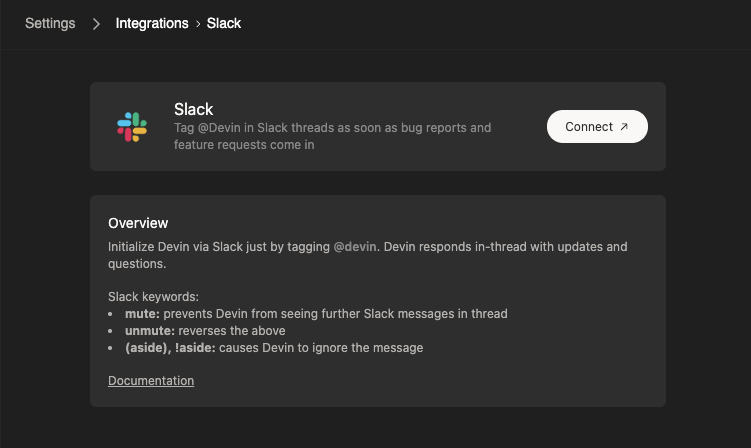 3. 根据提示在你的工作区中安装 Devin 的 Slack 应用
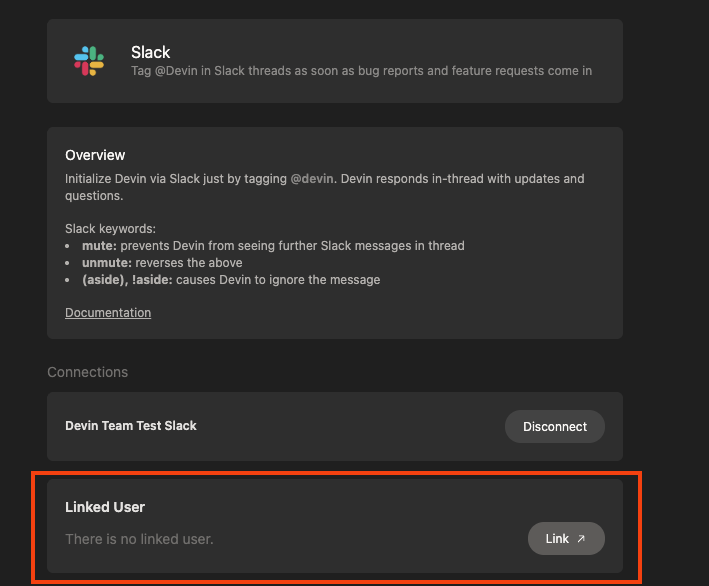
4. 确保关联你的个人用户账户。你所在组织中的所有用户都需要完成此步骤才能使用 Devin。
3. 根据提示在你的工作区中安装 Devin 的 Slack 应用
4. 确保关联你的个人用户账户。你所在组织中的所有用户都需要完成此步骤才能使用 Devin。
 5. 在 Slack 中 @Devin 以开始会话
> 注意:如果你的用户账户无法正常连接,请确认你的 Slack 邮箱地址是否与 [https://app.devin.ai/settings](https://app.devin.ai/settings) 中的邮箱地址一致。如果不一致,请在 Slack 中使用正确的邮箱地址重新认证。
5. 在 Slack 中 @Devin 以开始会话
> 注意:如果你的用户账户无法正常连接,请确认你的 Slack 邮箱地址是否与 [https://app.devin.ai/settings](https://app.devin.ai/settings) 中的邮箱地址一致。如果不一致,请在 Slack 中使用正确的邮箱地址重新认证。
### 如何在 Slack 中使用 Devin
在你为 Slack 安装完成 Devin 集成后,只需在任意频道中通过 @Devin 触发 Devin。你可以在消息中添加附件。
 Devin 会在会话线程中回复你。现在,你可以像在常规聊天界面中一样与 Devin 来回交流。
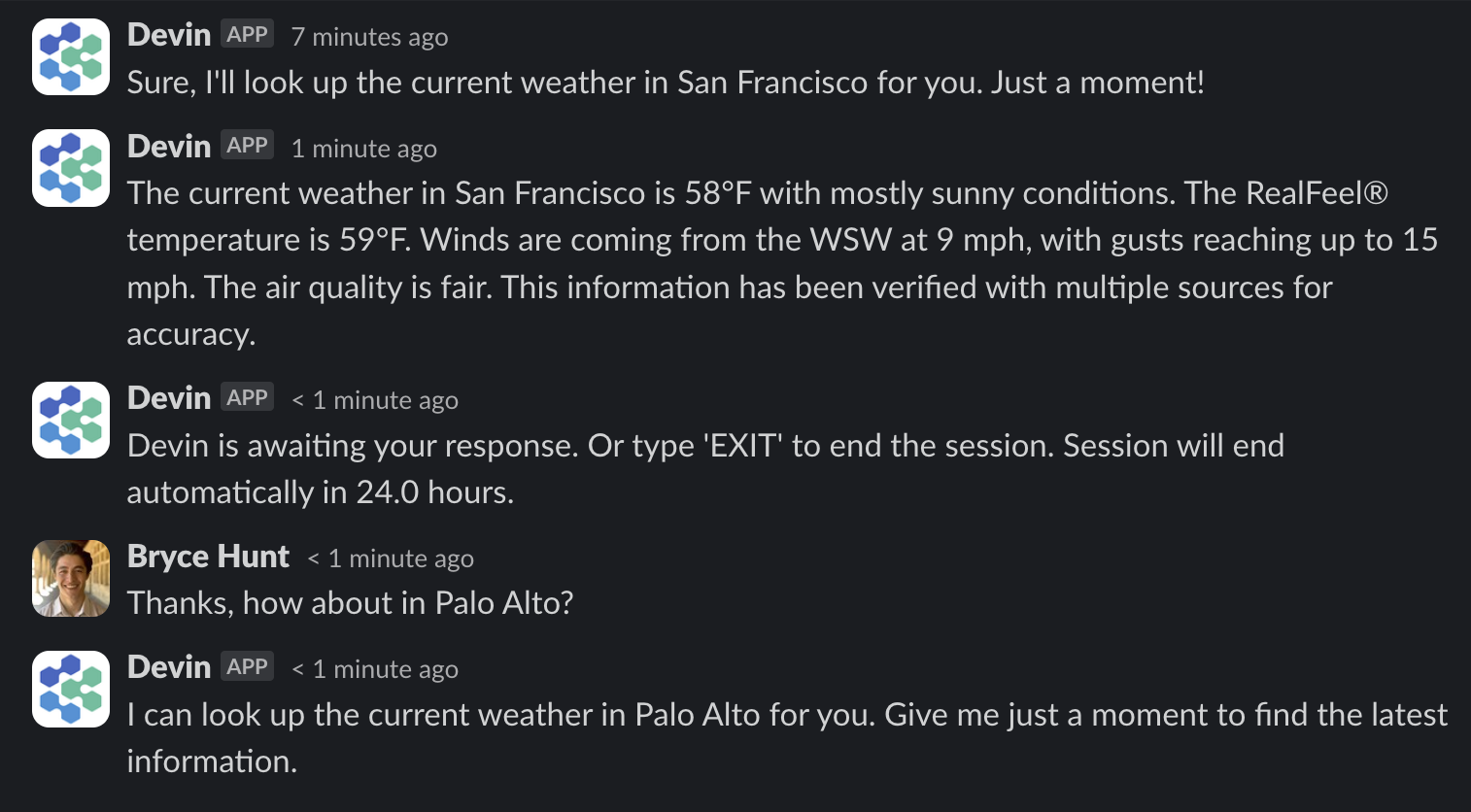 *请注意,Devin 可能会出错。请务必仔细检查其回复内容。*
### 内联 Slack 关键词和功能
| Keyword | Function |
| --------------------------- | ---------------------------------------------------------------------------------------- |
| `!ask` | 在消息开头使用 !ask,可在不启动完整 agent 的情况下快速获取与代码库相关的解答 |
| `!deep` | 使用高级搜索获取更深入的研究型解答 |
| `mute`, `@Devin mute` | 阻止 Devin 查看该会话线程中后续的 Slack 消息。自然表达也同样有效 (例如 “be quiet”、“stop responding in this thread”) |
| `unmute`, `@Devin unmute` | 撤销上述操作 (也可使用 “start responding again”) |
| `(aside)`, `!aside` | 让 Devin 忽略该消息 (适用于在同一会话线程中直接评论 Devin 的运行) |
| `sleep` | 让 Devin 进入休眠;要唤醒 Devin,在该会话线程中发送任意消息即可 |
| `archive`, `@Devin archive` | 让 Devin 进入休眠并归档该会话 |
| `EXIT` | 结束会话 |
| `!dana` | 启动 [Data Analyst (Dana)](/zh/work-with-devin/data-analyst) 会话,用于数据库查询、数据分析和可视化 |
| `!fast` | 在消息开头使用 !fast,以快速模式启动会话,从而在较简单的任务上更快获得响应 |
| `!ultra` | 在消息开头使用 !ultra,以 Ultra Mode 启动会话,用于最复杂的任务 |
| `!lite` | 在消息开头使用 !lite,以 Lite Mode 启动会话 |
| `!fusion` | 在消息开头使用 !fusion,以 Fusion Mode 启动会话 |
| `!swe` | 在消息开头使用 !swe,在 SWE-1.7 上启动会话 |
| `!normal` | 在消息开头使用 !normal,将活跃会话切换回默认 Devin mode |
| `!new` | 强制让会话在新的会话线程中启动,而不是在当前会话线程中回复 |
| `!channel #channel-name` | 将该会话的回复会话线程发布到其他 channel 中 (Devin 必须已在其中) |
| `!windows` | 在 Windows VM 上运行新会话 (需要你的组织具备 Windows entitlement) |
| `!data` | `!dana` 的别名 |
| `!discovery` | 仅在 `!dana` / `!data` 之后立即有效 —— 对可通过你已连接的 MCP 集成访问的数据库和 schema 进行编目 |
| `unsync`, `!unsync` | 停止将该会话同步到 Slack 会话线程 (参见 [将会话与 Slack 会话线程同步](#sync-sessions-with-slack-threads)) |
| `![macro_name]` | 通过引用其宏名称,将一个 Playbook 附加到会话中 |
Bang 命令 (`!fast`, `!lite`, `!ultra`, `!fusion`, `!swe`, `!normal`, `!new`, `!channel`, `!windows`, `!dana`) 可在消息中的任何位置被识别,而不仅限于开头 —— `@Devin fix the bug !ultra !new` 与 `@Devin !ultra !new fix the bug` 的效果相同。它们可以按任意顺序叠加使用,并且这些关键词本身会从 Devin 接收到的提示中移除。位于内联代码或围栏代码片段中的 bang 命令会被视为字面文本。在活跃的 Devin 会话线程中发送模式关键词,会在会话进行中切换该会话的模式。
### 斜杠命令
| 命令 | 作用 |
| ---------------------------- | ----------------------------------------------------- |
| `/ask-devin [your question]` | 快速回答代码库相关问题,无需启动完整会话。Devin 会在新的会话线程中回复。 |
| `/dana [your data question]` | 启动一个 [Dana](/zh/work-with-devin/data-analyst) 数据分析会话。 |
运行任一命令时不带参数 (或输入 `help`) ,即可私下收到用法指示。
### 消息快捷方式
右键点击任意 Slack 消息 (或使用其上的 ⋮ 更多菜单) ,即可直接对其执行操作,无需重新输入:
* **向 Devin 询问此内容** — 将该消息用作问题,快速获得代码库相关的回答,效果与 `/ask-devin` 相同。
* **创建新会话** — 打开一个预先填入该消息文本的模态窗口,你可以选择将会话发布到哪个频道,还可选择附加一个 [playbook](/zh/product-guides/using-playbooks),并在提交前编辑提示。
### 将会话与 Slack 会话线程同步
会话可以与 Slack 会话线程双向同步:你在 Web 应用中发送的消息会出现在该会话线程里,而会话线程中的回复也会发送给 Devin。这意味着你可以在任何地方发起会话,同时让团队随时掌握进展。
* 使用会话输入框中的 Slack 开关,为该会话开启或关闭同步。同步时图标会高亮显示,未同步时则会变灰。
* 第一次同步到某个频道时,Devin 会询问你是否将其设为默认频道,以便新会话自动同步到该频道。
* 在已同步的会话线程中发送 `unsync` (或 `!unsync`) ,即可立即停止该会话的同步。要恢复同步,请在 Web 应用中重新开启同步开关。
还有几个相关行为:
* 在已归档会话的会话线程中提及 `@Devin` 会将其取消归档,这样你就可以继续对话。
* 当 Devin 建议更改[环境配置](/zh/onboard-devin/environment/blueprint-reference)时,Slack 消息会包含建议的 diff 和一个 **应用** 按钮,让你无需离开 Slack 即可接受更改。
### 从 Slack 触发的 Automations
[Automations](/zh/product-guides/automations) 可由 Slack 中的活动触发——例如为消息添加表情回应,或由 Devin 监控某个频道并在可以提供帮助时介入——并可将运行结果发布回你指定的频道。有关设置,请参阅 [Automations 指南](/zh/product-guides/automations)。
### 开启 Slack 通知
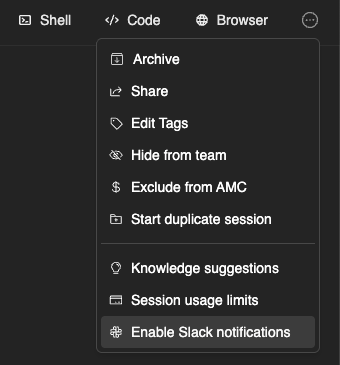
你可以为特定的运行启用 Slack 通知,这样每当有状态更新时,Devin 都会私信通知你。要启用通知,只需在任意运行页面顶部的菜单中点击“Enable Slack notifications”。
### 专用 Devin 频道
创建一个专门的 **#devin-runs** 频道 (或类似名称) ,将所有与 Devin 相关的对话集中到一个地方。这样可以帮助你的团队协作处理 Devin 的运行任务,并从彼此的不同使用场景中获得灵感。

### 如何重命名 Devin
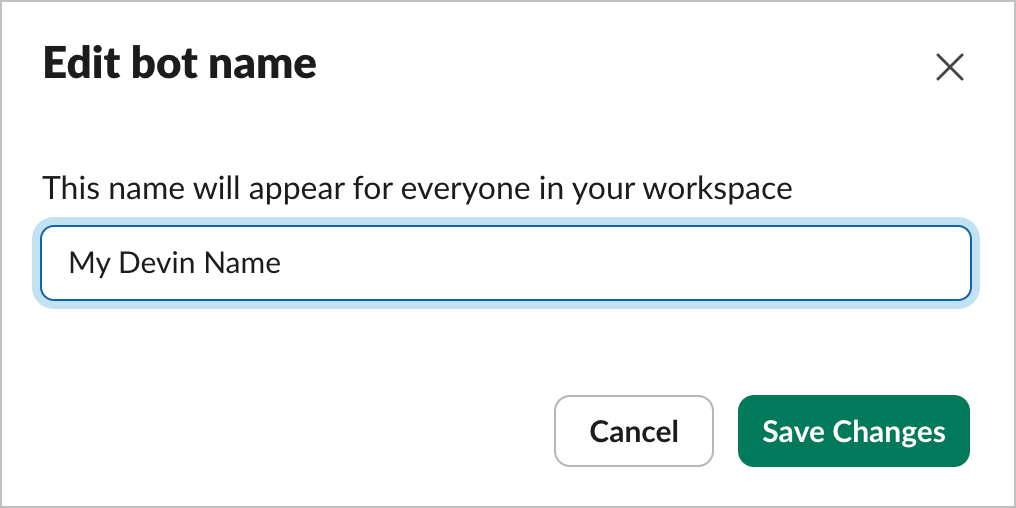
你可以在 Slack 工作区中更改 Devin 的名称。前往 Slack 工作区管理面板 -> Configure apps -> Installed Apps -> Devin。然后点击 App Details,并进入该页面的 Configuration 选项卡。向下滚动,你会看到名为“Bot User”的部分,在那里可以更改 Devin 的名称。
### 定价
如果你还没有 Devin 账户,可以在[此处](https://devin.ai/pricing)了解更多定价和套餐信息。
AI 助手侧边栏体验 (应用容器) 需要付费的 Slack 套餐。所有其他 Devin 功能——包括频道和会话线程中的 @提及、`/ask-devin`、`/dana` 以及消息快捷方式——均可在任何 Slack 套餐中使用,包括免费工作区。
### 隐私
请参阅我们的[隐私政策](https://cognition.com/privacy-policy)。
### 权限详情
| Permission | Description | Rationale |
| ---------------------------------------------------- | --------------------------------- | --------------------------------------------------- |
| `app_mentions:read` | 查看直接提及 @Devin 的消息 | Devin 通过 @提及被唤起,因此必须接收提及事件 |
| `assistant:write` | 在 Slack 侧边栏中作为 AI 助手运行 | 支持 AI 助手侧边栏体验及其状态更新 |
| `chat:write, chat:write.customize` | 以 @Devin 身份发送消息,或使用自定义用户名和头像发送消息 | Devin 必须能够响应用户请求 |
| `commands` | 添加可供用户使用的快捷方式和/或 Slash Command | 支持 `/ask-devin`、`/dana` 和消息快捷方式 |
| `files:read, files:write` | 以 Devin 身份上传、编辑和删除文件 | 为了向用户发送和接收附件,Devin 需要管理文件 |
| `channels:history, groups:history, im:history` | 查看 Devin 所在频道、组和私信中的消息及其他内容 | 当 Devin 在消息会话线程中启动时,它必须访问历史消息,以检索线程中的先前消息作为上下文 |
| `channels:read, groups:read, mpim:read, im:read` | 查看 Devin 已加入的频道、私有频道、群组私信和私信的基本信息 | Devin 需要解析并列出它可以发送消息的频道 (例如频道选择器和 `!channel`) |
| `channels:join` (optional) | 加入工作区中的公开频道 | 让 Devin 能够将自己添加到某个已配置为由自动化发送消息的频道中。缺少此权限只会禁用该自动加入功能 |
| `im:write` | 与用户发起私信 | Devin 需要能够发起私信,才能通过 Slack 向用户发送通知 |
| `reactions:read, reactions:write` | 查看、添加和编辑表情回应 | Devin 会给消息添加表情,以标记运行已完成或失败,而表情回应也可以触发自动化 |
| `team:read` | 查看工作区的基本信息 | Devin 需要将 Slack 工作区映射到正确的 Devin 组织 |
| `users:read, users:read.email`, `users.profile:read` | 查看工作区中的用户,以及他们的电子邮件和 Profile | Devin 需要能够根据电子邮件地址将 Slack 用户与 Devin 用户匹配起来 |
随着 Devin 的 Slack 功能不断增强,我们有时会添加新的作用域。如果你的工作区安装缺少必填作用域,Devin 会提示管理员从 [Settings > Connections > Slack](https://app.devin.ai/settings/connections/slack) 重新安装该应用。