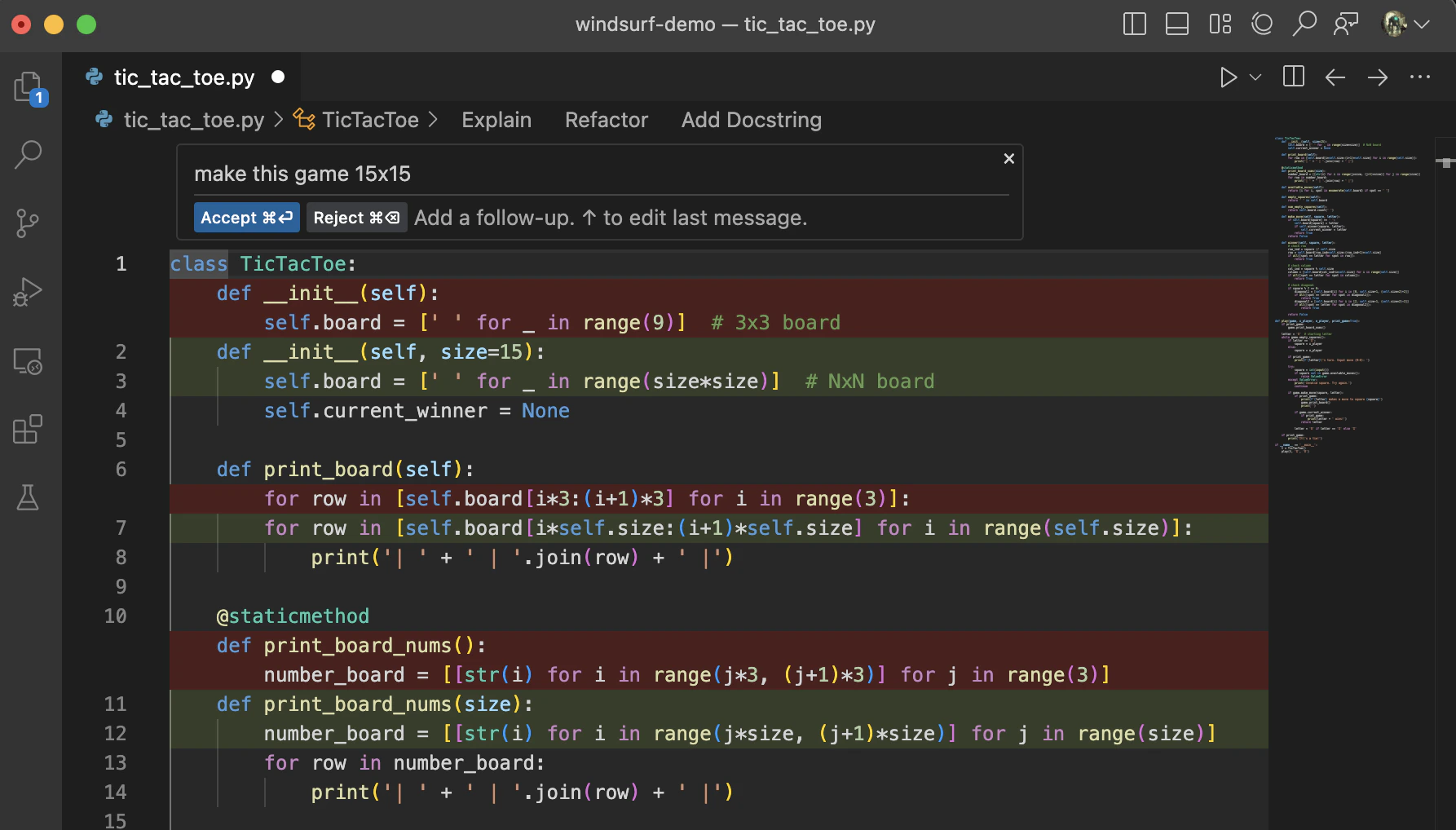
Use Devin Desktop Command (Cmd/Ctrl+I) for inline code generation and edits with natural language. No premium credits required.
Command generates new or edits existing code via natural language inputs, directly in the editor window.
Command does NOT consume any premium model credits.
To invoke Command, press ⌘+I on Mac or Ctrl+I on Windows/Linux.You can enter a prompt in natural language and hit the Submit button (or ⌘+⏎/Ctrl+⏎) to forward the instruction to the AI.If you highlight a section of code before invoking Command, then the AI will edit the selection spanned by the highlighted lines.
Otherwise, it will generate code at your cursor’s location.
You can accept, reject, or follow-up a generation by clicking the corresponding code lens above the generated diff, or by using the appropriate shortcuts (Cmd/Ctrl+Enter to accept, Cmd/Ctrl+Shift+Backspace to reject).
Command is great for file-scoped, in-line changes that you can describe as an instruction in natural language.
Here are some pointers to keep in mind:
The model that powers Command is larger than the one powering autocomplete.
It is slower but more capable, and it is trained to be especially good at instruction-following.
If you highlight a block of code before invoking Command, it will edit the selection. Otherwise, it will do a pure generation.
Using Command effectively can be an art. Simple prompts like “Fix this” or “Refactor” will likely work
thanks to Devin Desktop’s context awareness.
A specific prompt like “Write a function that takes two inputs of type Diffable and implements the Myers diff algorithm”
that contains a clear objective and references to relevant context may help the model even more.
Assistant
Responses are generated using AI and may contain mistakes.