
To use artifacts during snapshot setup, you will need to authenticate with them during repository configuration. If you need to store secrets for artifact authentication, you can either save them directly to the machine file system (e.g., in a file or by exporting environment variables) or use Devin’s Secret Manager. Below are sections for AWS, Azure, and Jfrog If your artifacts are on a private network, please see VPC Deployment

Devin Machine Setup

To integrate with your artifact repositories, you’ll need to configure your Devin machine with the appropriate credentials and tools. There are two main ways to accomplish this:
  1. Use the integrated Terminal within Devin to install and configure artifact repository tools directly on the machine.
  2. Use the Setup Agent tab (located in the center column of Devin’s Machine during repo setup) and prompt Devin to assist with the setup.
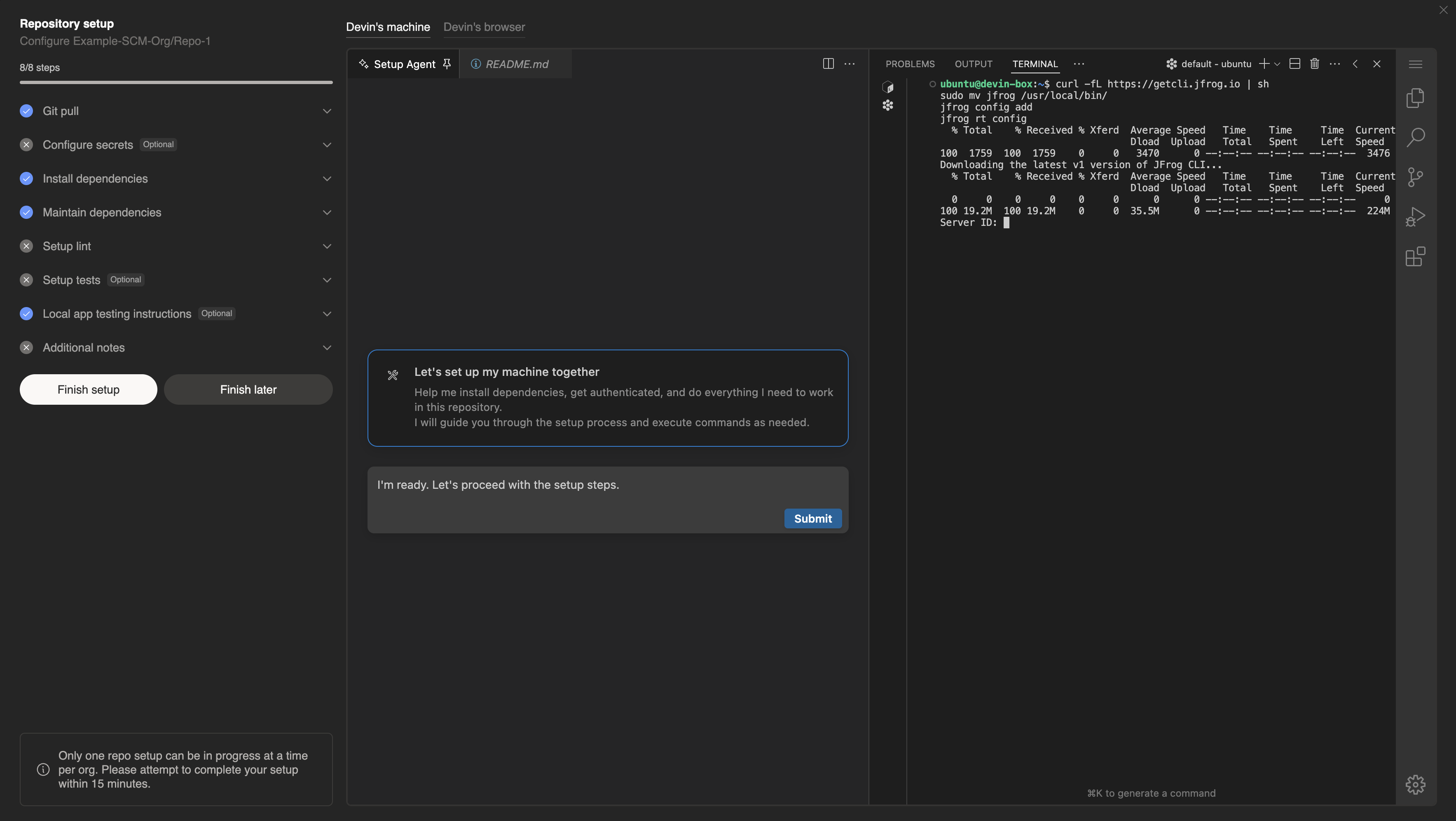
Example of using Jfrog Repo Setup

Example of using the integrated Terminal for Jfrog Repo Setup

Jfrog Artifactory

Step 1: Downloading CLI

curl -fL https://getcli.jfrog.io | sh
sudo mv jfrog /usr/local/bin/
jfrog config add
jfrog rt config

Step 2: Download Artifact

#!/bin/bash

# Set variables for your Artifactory instance and artifact details
ARTIFACTORY_URL="https://your-artifactory-instance.jfrog.io/artifactory"  # Change this to your Artifactory URL
REPO="my-repository"  # Replace with your repository name
ARTIFACT_PATH="my-artifact/my-package/1.0.0/my-package-1.0.0.jar"  # Path to your artifact in Artifactory
OUTPUT_DIR="./downloads"  # Directory to save downloaded artifact

## Step 1: Download the artifact
echo "Downloading artifact $ARTIFACT_PATH from $ARTIFACTORY_URL"
jfrog rt dl "$REPO/$ARTIFACT_PATH" "$OUTPUT_DIR/"

## Step 2: Check if download was successful
if [ $? -eq 0 ]; then
  echo "Artifact downloaded successfully to $OUTPUT_DIR/"
else
  echo "Failed to download the artifact."
  exit 1
fi

AWS Code Artifact

Step 1: Downloading CLI

#!/bin/bash

# Variables
ROLE_NAME="robot-artifact-iam-role"
POLICY_ARN="arn:aws:iam::aws:policy/AWSArtifactReadOnlyAccess"
KEY_PAIR_NAME="robot-artifact-key-pair"

# Step 1: Create IAM Role for AWS Artifact
echo "Creating IAM Role: $ROLE_NAME"
aws iam create-role \
  --role-name "$ROLE_NAME" \
  --assume-role-policy-document '{
    "Version": "2012-10-17",
    "Statement": [
      {
        "Effect": "Allow",
        "Action": "sts:AssumeRole",
        "Principal": {
          "Service": "artifact.amazonaws.com"
        }
      }
    ]
  }' > create_role_output.json

# Check if IAM Role was created successfully
if [ $? -eq 0 ]; then
  echo "IAM Role $ROLE_NAME created successfully."
else
  echo "Failed to create IAM Role $ROLE_NAME."
  exit 1
fi

# Step 2: Attach Policy to Role for Artifact Access
echo "Attaching AWSArtifactReadOnlyAccess policy to IAM Role $ROLE_NAME"
aws iam attach-role-policy \
  --role-name "$ROLE_NAME" \
  --policy-arn "$POLICY_ARN"

if [ $? -eq 0 ]; then
  echo "Policy attached successfully."
else
  echo "Failed to attach policy."
  exit 1
fi

# Step 3: Create IAM Access Keys (for programmatic access)
echo "Creating Access Keys for IAM Role: $ROLE_NAME"
aws iam create-access-key \
  --user-name "$ROLE_NAME" \
  > access_keys_output.json

# Check if keys were created
if [ $? -eq 0 ]; then
  echo "Access keys created successfully."
  ACCESS_KEY_ID=$(jq -r '.AccessKey.AccessKeyId' access_keys_output.json)
  SECRET_ACCESS_KEY=$(jq -r '.AccessKey.SecretAccessKey' access_keys_output.json)

  echo "Access Key ID: $ACCESS_KEY_ID"
  echo "Secret Access Key: $SECRET_ACCESS_KEY"
else
  echo "Failed to create access keys."
  exit 1
fi

# Step 4: Display the IAM Role and Access Key Information
echo "IAM Role $ROLE_NAME has been created with the policy: $POLICY_ARN"
echo "Access Key ID: $ACCESS_KEY_ID"
echo "Secret Access Key: $SECRET_ACCESS_KEY"

Step 2: Downloading Artifact

#!/bin/bash

# Variables
ARTIFACT_ID="example-artifact-id"  # Replace with the actual Artifact ID
# Step 1: Get Artifact URL for downloading the report
echo "Fetching artifact download URL for Artifact ID: $ARTIFACT_ID"
DOWNLOAD_URL=$(aws artifact describe-artifact \
  --artifact-id "$ARTIFACT_ID" \
  --query "artifactDetails[0].downloadUrl" \
  --output text)

Azure Artifacts

Step 1: Downloading CLI

# Install Microsoft package repository
wget https://packages.microsoft.com/config/ubuntu/$(lsb_release -rs)/packages-microsoft-prod.deb -O packages-microsoft-prod.deb
sudo dpkg -i packages-microsoft-prod.deb
rm packages-microsoft-prod.deb

# Update package lists and install .NET SDK
sudo apt update
sudo apt install -y dotnet-sdk-8.0
dotnet tool install -g AzureArtifactsCredentialProvider

Step 2: Generating a PAT

Next, you’ll need to generate a personal access token (PAT).
  1. Log in to your Azure DevOps portal.
  2. In the top-right corner, click on your profile and select Security.
  3. In the Personal Access Tokens section, click on New Token.
  4. Set the scopes for the token. You’ll need at least the “Packaging (read)” scope to access Azure Artifacts.
  5. Save your PAT securely, as you will not be able to view it again.

Step 3: Configure .npmrc file

echo "//pkgs.dev.azure.com/your-organization-name/_packaging/your-feed-name/npm/registry/:username=AzureDevOps" >> ~/.npmrc
echo "//pkgs.dev.azure.com/your-organization-name/_packaging/your-feed-name/npm/registry/:_password=$(echo -n your-PAT | base64)" >> ~/.npmrc
If you’re working with NuGet, you will need the following:
mkdir -p ~/.nuget
cat <<EOL > ~/.nuget/nuget.config
<configuration>
  <packageSources>
    <add key="Azure Artifacts" value="https://pkgs.dev.azure.com/your-organization-name/_packaging/your-feed-name/nuget/v3/index.json" />
  </packageSources>
  <packageSourceCredentials>
    <Azure_Artifacts>
      <add key="Username" value="AzureDevOps" />
      <add key="ClearTextPassword" value="your-PAT" />
    </Azure_Artifacts>
  </packageSourceCredentials>
</configuration>
EOL
If you need Docker artifacts from Azure:
echo your-PAT | docker login https://your-organization-name.azurecr.io --username your-username --password-stdin
To get started with Devin Enterprise, contact our enterprise sales team.