
Overview
Devin Enterprise gives you fine-grained control over admin, security, and provisioning of individual users. This guide walks you through setting up Devin Enterprise, including environment configuration, tool integration, and account provisioning. Devin’s setup process mirrors the onboarding of a new engineer—it requires access to the same services and tools as your development team.This guide does not cover Devin’s deployment. For deployment details, refer to the Deployment Guide.
Understanding Organizations
Organizations in Devin Enterprise are logical groupings that provide structure and boundaries for your development teams. Each organization operates as a self-contained unit with its own shared Devin machine, repository access, and member permissions.Learn More About Organizations
Dive deeper into organization structure, planning patterns, and best practices for mapping your teams to Devin organizations.
Creating Organizations
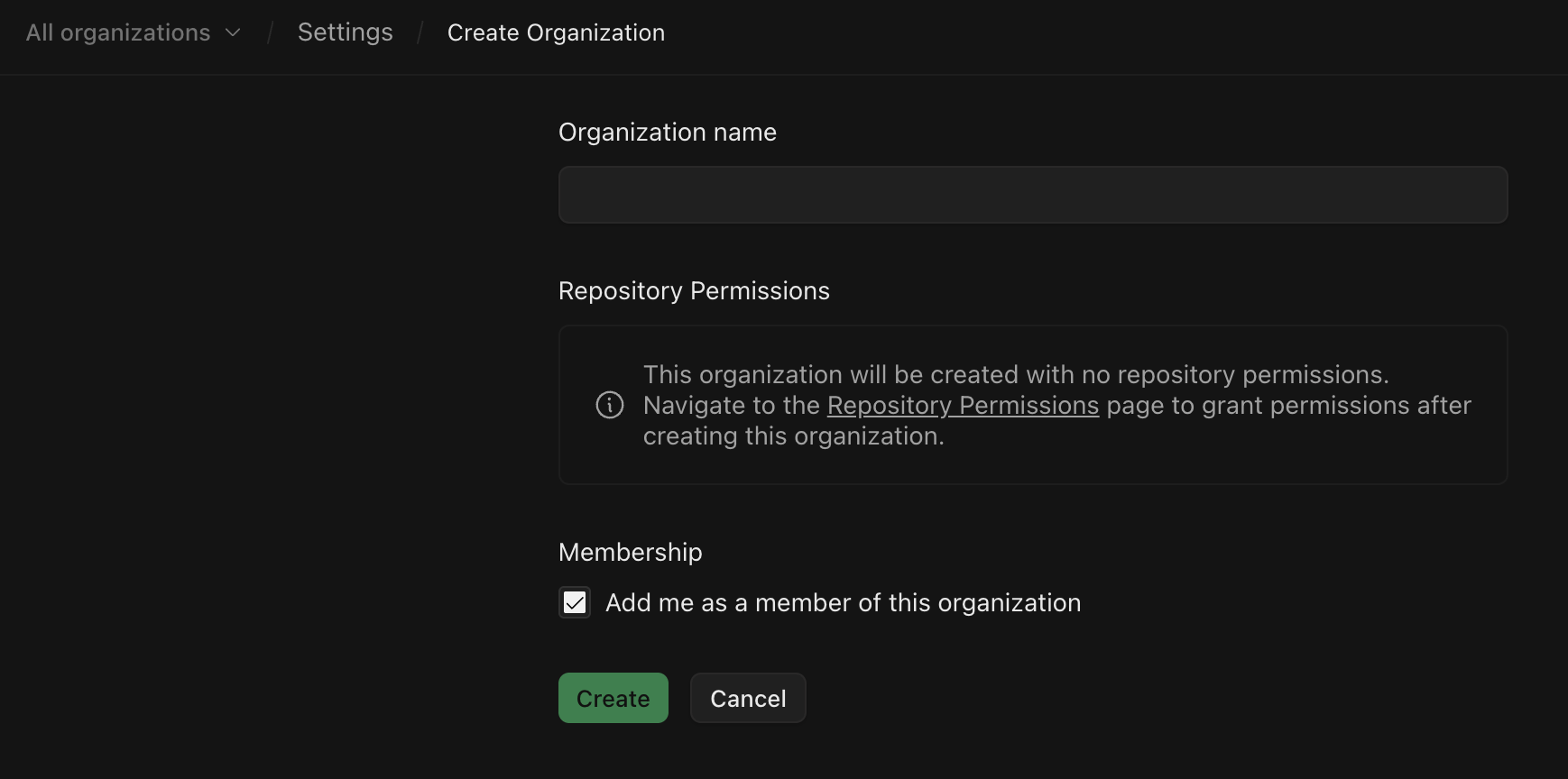
You can create multiple organizations within your enterprise to segment teams, projects, or departments. To create an organization:- Go to Enterprise Settings > Organizations
- Click Add Organization
- Provide a name and click Add
Members and Roles
User Roles
There are three types of default users on Devin Enterprise, each with varying levels of permissions.| Role | Permissions |
|---|---|
| Enterprise Admins | - Full access to all enterprise settings - Create organizations - Invite individuals to organizations - Connect source code repository to account - Manage billing |
| Organization Admins | - Invite members to their organization |
| Members | - Use Devin and have full access within their organization - Execute Devin sessions |
Custom Roles
For more granular access control, Devin Enterprise supports Custom Roles & RBAC. You can create custom roles with specific permissions at both the organization level (controlling access within a specific organization) and account level (applying across the entire enterprise).IdP Groups
Custom roles can be automatically assigned based on SSO IdP group membership. See IdP Group Integration for detailed configuration steps.Adding Members
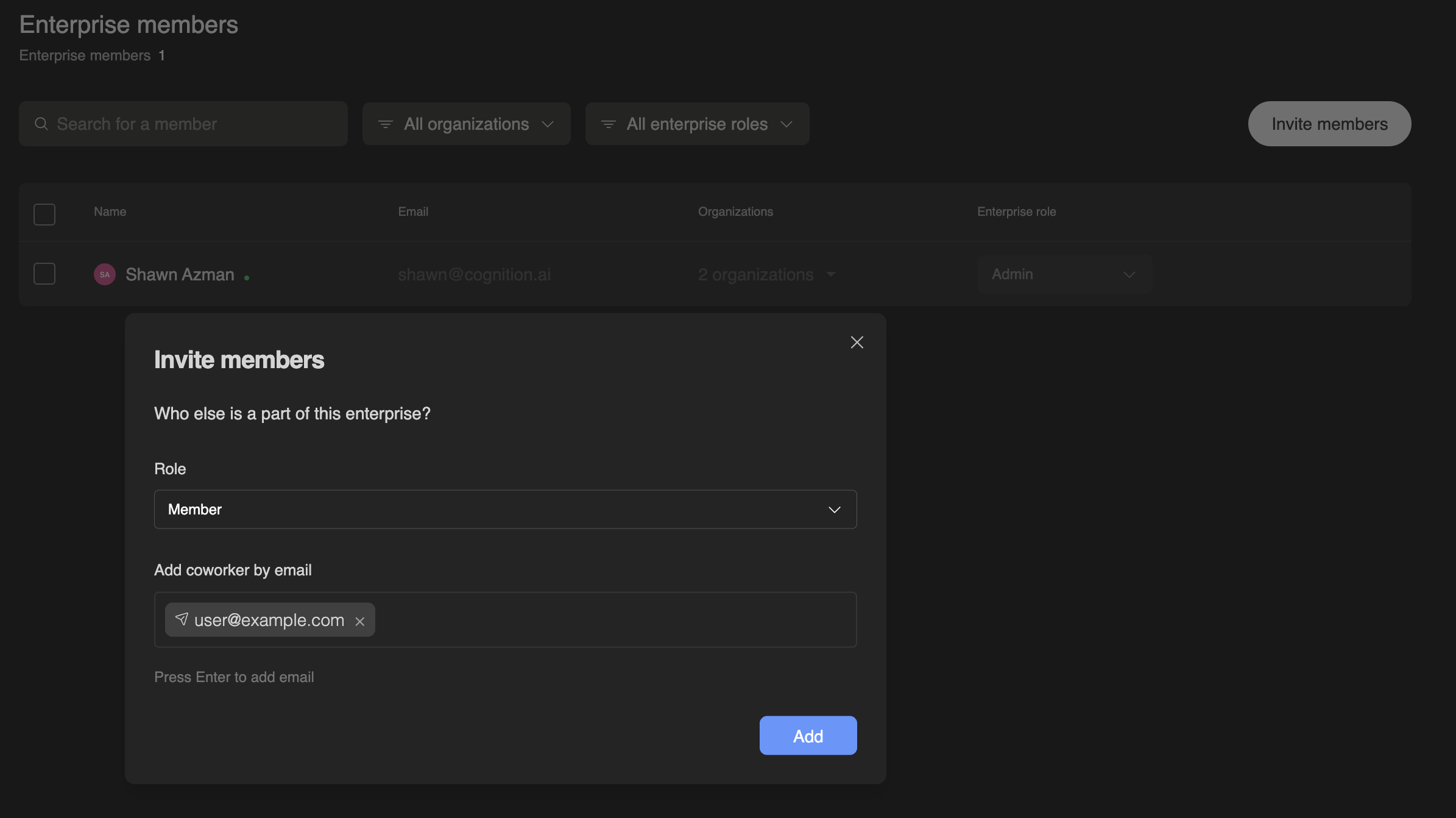
After creating an organization, you can add members and assign them to specific organizations.- Navigate to Enterprise Settings > Members
- Click Add Members
- Enter the email address of each user you’d like to invite
Managing Member Access
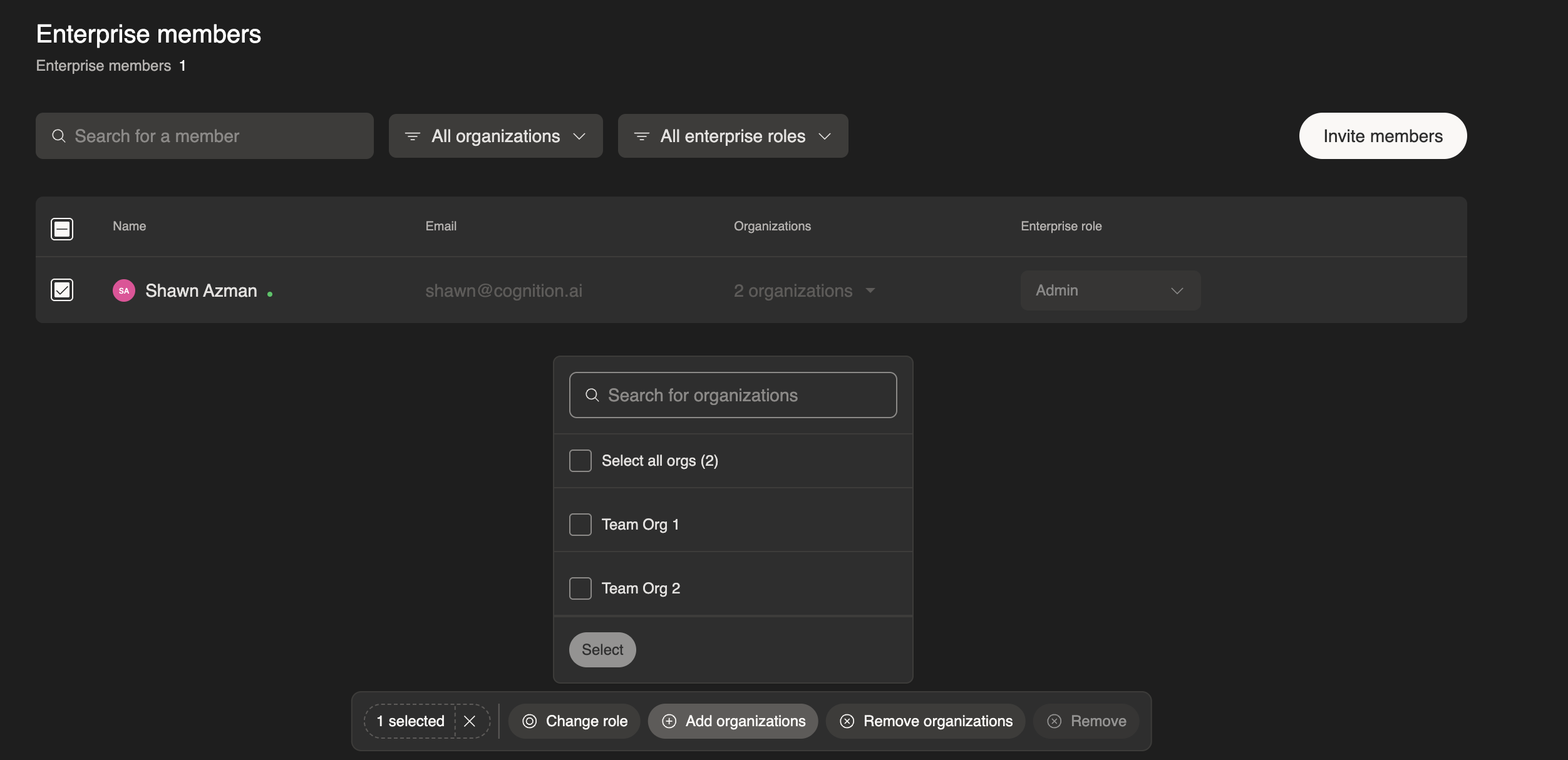
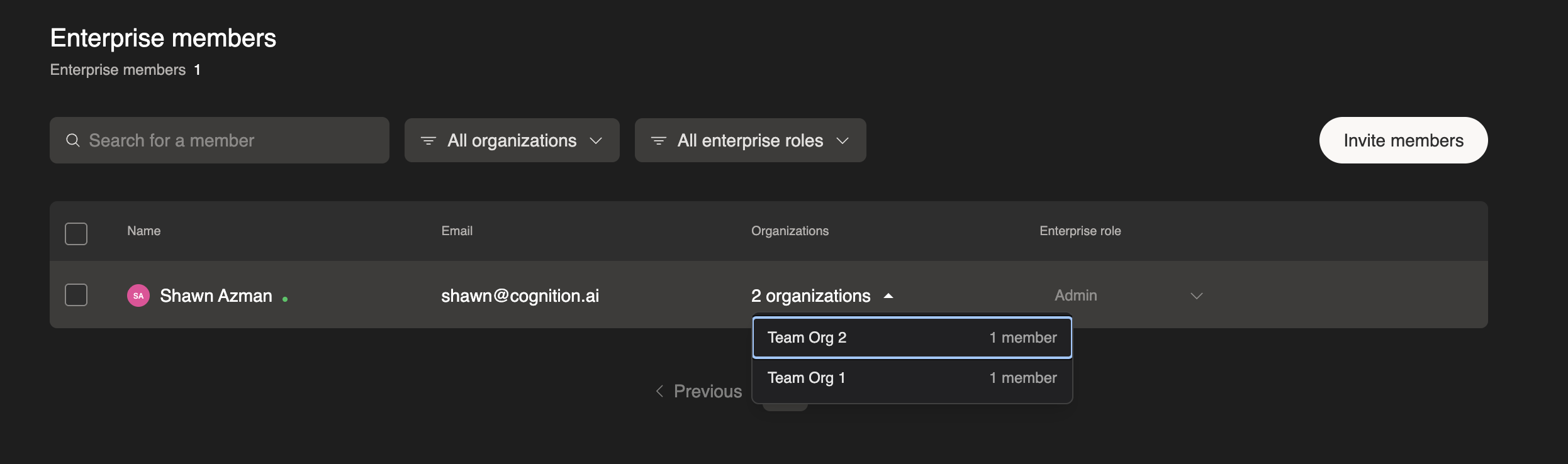
To manage member access to organizations:- Go to Enterprise Settings > Members
- Use the checkbox next to a user’s name to select one or more users
- Use the action buttons at the bottom of the page (Change role, Add organizations, Remove organizations, or Remove) to manage the selected users
Single Sign-On (SSO)
Your enterprise admin can set up authentication to Devin via SSO. We support:Integrations
Source Code Access
Your enterprise admin must connect source code using one of our supported integrations. This can be done in Enterprise Settings > Connected Accounts: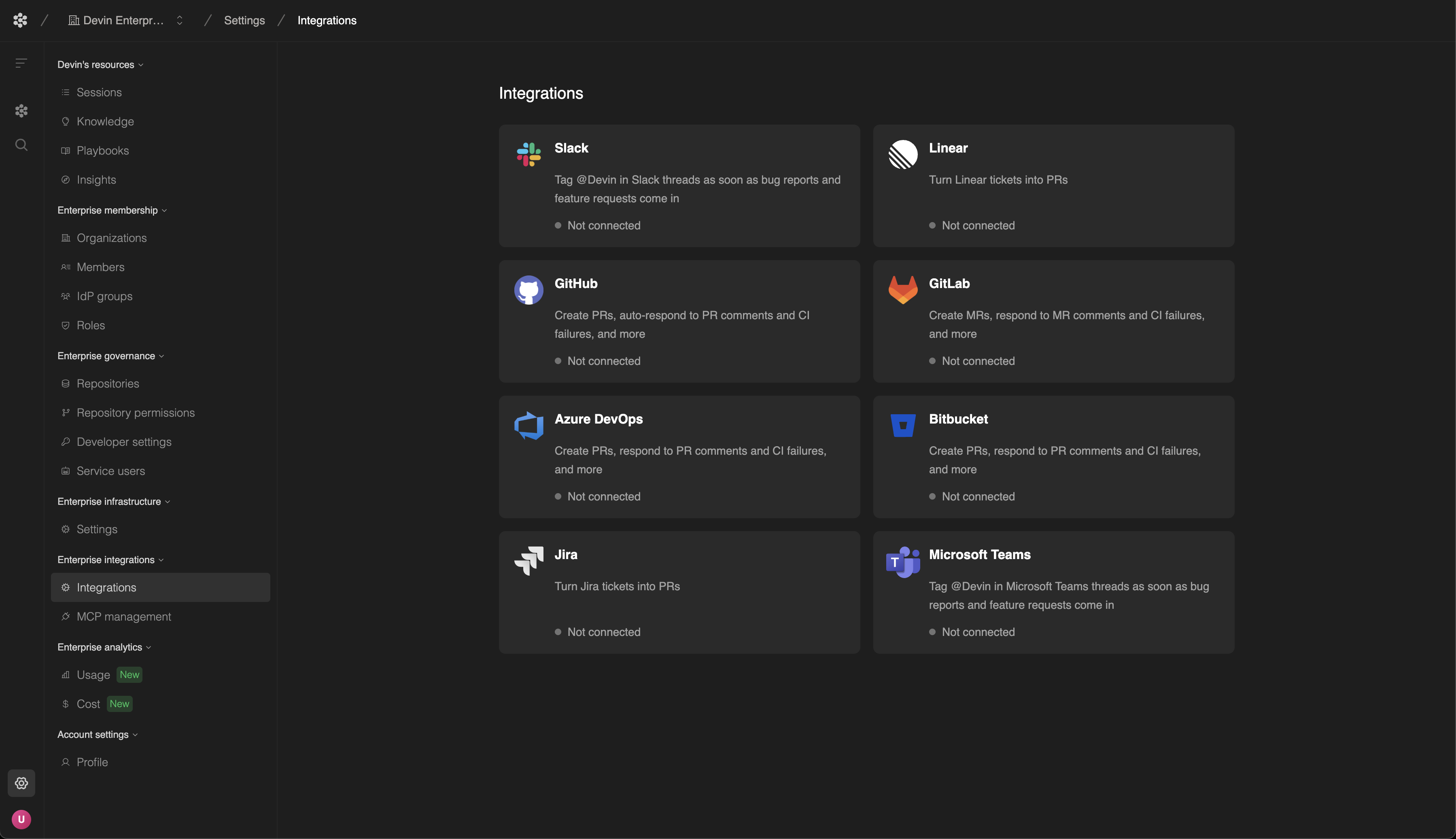
Managing Repository Permissions
Learn how to grant organizations access to specific repositories or entire GitHub groups using Group and Repository Permissions.
Slack & Microsoft Teams Integration
Tag @Devin directly in Slack channels or Microsoft Teams to start sessions, ask questions, and collaborate with your team. Devin responds in-thread with updates and can be controlled using inline keywords like!ask, mute, and sleep. See the Slack integration guide or Microsoft Teams integration guide for setup instructions.
Next Steps
Deployment Options
Explore deployment models including Enterprise SaaS and Dedicated SaaS.
Security & Compliance
Learn about Devin’s security practices, data privacy, and compliance certifications.
Use Cases
Browse practical examples across engineering workflows.
For enterprise-level setup and support, contact our Enterprise Sales Team.