

Get started
Installation
Setting up Microsoft Teams has two parts: connecting your Microsoft 365 tenant to Devin, then installing the Devin app in the teams where you want to use it.1. Connect your tenant
- Go to Settings > Connections and select Microsoft Teams
- Click Connect and sign in with a Microsoft account that has the Teams Administrator or Global Administrator role in the tenant that owns your teams. Other accounts are rejected; see the FAQ for who can connect and which account to pick.
- Complete the Microsoft prompts. You’re returned to the Microsoft Teams settings page, and your own Microsoft Teams user is linked to your Devin user.
Your tenant must allow the Devin AI app to receive an application token so Devin can read messages where it’s installed (access is scoped per team or chat through resource-specific consent, granted when the app is installed). If Microsoft Entra ID blocks it, ask a Cloud Application Administrator (or higher) to allow the app, then connect again.
2. Install Devin in a team
- On the Microsoft Teams settings page, find the Connected teams section
- Click Install in team to open the Devin app in Microsoft Teams, then add it to the team or chat you want. Team owners can also add Devin directly from the Teams store.
- Once installed, the team appears under Connected teams
3. Link each user and start using Devin
- Every user who wants to use Devin from Teams must link their own Microsoft Teams identity. Go to your personal Connections page, click Link next to Microsoft Teams, and sign in with Microsoft.
- To message Devin in a 1:1 chat (DM), each user must also install the Devin AI app for themselves: in Microsoft Teams, open Apps, search for Devin AI, and click Add. Installing Devin in a team or group chat does not add it to anyone’s personal chats. Teams admins can pre-install it for users with an app setup policy in the Teams admin center.
- Mention
@Devin AIin a Team channel or group chat, or message Devin AI in a 1:1 chat, to start a session
Note: For Devin to work for each user, every individual must link their own account from their personal Connections page (Microsoft Teams > Link). This lets Devin associate their Microsoft Teams identity with their Devin user.
How to use Devin from Microsoft Teams
Once you’ve installed the Microsoft Teams integration, simply trigger Devin with@Devin AI in any Team channel or group chat, or message Devin AI directly in a 1:1 chat.
In Team channels, Devin replies in the thread of your message. In 1:1 and group chats, which don’t have threads, Devin replies directly in the chat. You can communicate back and forth just like in the regular Devin chat interface.
In shared channels, the Devin AI app must also be enabled for the channel (installing it in the host Team is not enough), and Devin only replies in the thread when it’s @mentioned. Private channels are not supported.
Which organization a session runs in
Devin’s first reply in a 1:1 chat or channel thread says which organization the session started in.- One organization: your sessions always run there, so there is no default to choose.
- Several organizations: the first time you message Devin, it asks which one to use and saves your answer as your default for Teams. New sessions you start from Teams, in chats and channels, run there.
org (@Devin AI org in group chats and channels) or update it in your profile settings in the Devin web app. Changing it only affects new sessions: a session that is already running stays in the organization it started in.
Sessions in group chats
A group chat is linked to one Devin session, shared by everyone in the chat, and it stays in the organization it started in. To start your own session there, send@Devin AI new <prompt>: the chat switches to your session, and the previous one stays available in the Devin web app. See the FAQ for more.
Note that Devin may make mistakes. Please double-check responses.
Inline Teams Keywords & Functions
Mode keywords (
!fast, !lite, !ultra, !fusion, !swe, !swe2, !normal) are recognized anywhere in your message and are stripped from the prompt Devin receives. A keyword inside an inline or fenced code span is treated as literal text. Sending a mode keyword in an active Devin thread or chat switches that session’s mode mid-session.Pricing
If you don’t yet have a Devin account, you can learn more about pricing and plans here.Privacy
Our privacy policy is available here.Support
If you run into issues with the Microsoft Teams integration, have questions, or come across any objectionable AI-generated content, contact us and we’ll open a support ticket for you:- Email: support@cognition.ai — include your organization name, the Teams tenant, and a description or screenshot of the problem.
- Enterprise customers: you can also reach out to your Cognition account team.
Authentication Flow
The diagram below illustrates the high-level authentication architecture for the Microsoft Teams integration, showing how authentication flows from Teams through various layers to create authenticated Devin sessions.Permissions Details
Below is a summary of the Microsoft Teams and Microsoft Graph permissions our integration requires—what each grants, why we need it, and where it’s used.At a glance
- Microsoft sign-in (delegated
User.Read): connecting your tenant (Teams Administrator or Global Administrator) and linking individual users.- Post as yourself (delegated
ChannelMessage.Send,ChatMessage.Send,offline_access): requested when a user links their profile, so Devin can post that user’s web app messages to Teams under their own name. Users can choose Link without posting as you to link with onlyUser.Read.- Teams bot RSC (per Team/Chat): scoped access to messages/members/settings only where the bot is installed or present.
- No tenant-wide Microsoft Graph application permissions: Devin never requires tenant-wide admin consent in Microsoft Entra ID.
Teams Bot Resource-Specific Consent (RSC) Permissions
These are granted per Team/Chat at install time (do not apply tenant-wide).Team-scoped (Team/Channel)
Chat-scoped (1:1 and group chats)
RSC guardrails: Access is limited to the specific Team/Chat where the app is installed or participates. Removing the app from a Team/Chat revokes that access.
Delegated Permissions (post as yourself)
These are granted by each user for themselves when they link their user profile. They’re optional: choosing Link without posting as you links the profile with onlyUser.Read, and messages from the Devin web app are then posted as “User Name by Devin”. Devin uses them only to post that user’s messages from the Devin web app into the Teams thread or chat of a session started from Teams.
These permissions don’t require admin consent by default. If your tenant’s user consent settings in Microsoft Entra ID don’t allow users to consent to them, users see an admin approval prompt when they link their profile; they can still link with Link without posting as you.
Example: Certificate-Based Authentication for Microsoft Graph
The diagram below illustrates our app-only, certificate-based authentication with Microsoft Graph. Using an X.509 client certificate, the service acquires an access token for your tenant and then calls Graph for a resource where the Devin app is installed, for example reading a team’s details (GET /v1.0/teams/). Access is granted by the resource-specific consent (RSC) permissions in the app manifest, so the token only works for Teams and chats where the app is installed.Credential note: We use an X.509 certificate (client assertion) rather than a client secret for service-to-service authentication. This applies to the RSC-scoped Microsoft Graph calls, bot communications with the Bot Framework adapter, and any app-only API calls from the integration.
Complete Message Processing Flow (Teams → Cognition)
The diagram below shows the complete end-to-end flow when a user sends a message to Devin in Microsoft Teams, including token validation and bot processing.Credential note: We use an X.509 certificate (client assertion) rather than a client secret for service-to-service authentication. This applies to the RSC-scoped Microsoft Graph calls, bot communications with the Bot Framework adapter, and any app-only API calls from the integration.
Consent & Installation Flow
- Tenant connection
- A Teams Administrator or Global Administrator signs in with delegated
User.Read. No tenant-wide admin consent is granted.
- A Teams Administrator or Global Administrator signs in with delegated
- Targeted Installation
- From Connected teams > Install in team, you open the Devin AI app in Microsoft Teams and add it to a specific Team or chat. Team owners can also add it from the Teams store.
- During installation, the RSC scopes are granted only to that Team (or to the specific Chat when invoked in a chat).
- User linking
- Each user signs in with delegated
User.Read, and consents for themselves toChannelMessage.Send,ChatMessage.Send, andoffline_accessso Devin can post as them. With Link without posting as you, onlyUser.Readis requested.
- Each user signs in with delegated
- Operation
- Reading/sending messages and reading members/settings rely on RSC within installed surfaces.
- Messages a user sends from the Devin web app are posted with that user’s delegated token when they granted it; otherwise they are posted by the bot as “User Name by Devin”.
Least-Privilege Notes
- Connecting Devin to Teams only requires delegated
User.Readand the RSC permissions above; no tenant-wide Graph permission is needed. - Posting as a user relies on that user’s own delegated consent and only sends messages; it doesn’t read messages, files, or other data.
- Message content is accessed exclusively via RSC and only where the bot is installed/present.
- No mailbox, files, or calendar permissions are requested.
Revocation & Uninstallation
- Uninstall from Teams: Remove the Devin app from a Team/Chat in Microsoft Teams to revoke RSC for that resource; the team disappears from Connected teams in the Devin dashboard.
- Post as yourself: disconnecting Microsoft Teams from your Settings > Connections deletes the stored user token. If a user or admin revokes the delegated permissions in Microsoft Entra ID, Devin falls back to posting as “User Name by Devin”.
- Previously granted admin consent: if your tenant granted tenant-wide admin consent to Devin in the past, a tenant admin can remove the app’s enterprise application permissions in Entra ID. Devin no longer uses them.
- Data Handling: On uninstall, our integration stops processing events for that Team/Chat and cleans up related subscriptions/links.
Extend Devin with Microsoft 365
The Teams integration lets you talk to Devin from Teams. To let Devin also work with your Microsoft 365 content during a session, install the Microsoft 365 plugins from the marketplace. For example, you can ask Devin to read a spec from SharePoint, summarize an email thread, or schedule a follow-up meeting.
Each plugin signs in with your Microsoft account and uses delegated Microsoft Graph permissions, so Devin can only access what the signed-in account can access. Depending on your tenant’s settings, an admin may need to grant consent for those permissions. You can install only the plugins you need. See MCP servers and marketplace to install and configure them.
FAQ
Do I need to be a Teams admin to connect my tenant?
Do I need to be a Teams admin to connect my tenant?
Yes. Connecting a Microsoft 365 tenant to Devin (the Connect button on the Microsoft Teams settings page) requires signing in with a Microsoft account that holds the Teams Administrator or Global Administrator role in that tenant. Devin checks the directory roles on the account you sign in with and rejects the connection for anyone else, including team owners and regular members.If you aren’t an admin, ask a Teams admin in your tenant to click Connect (they need the Manage chat integrations permission in your Devin organization). Once the tenant is connected, any team owner can install Devin in a team, and everyone links their own account from their personal Connections page; neither of those steps needs an admin.
Which Microsoft account should I pick on the sign-in screen?
Which Microsoft account should I pick on the sign-in screen?
Pick an account in the tenant that owns the team you want to use Devin from. A tenant is the Microsoft 365 directory your organization’s teams live in (for example
yourcompany.onmicrosoft.com). If you’re a guest in another organization’s teams, or you have accounts in several tenants, make sure the one you choose is both an admin and in the tenant that owns the team. Signing in with the wrong tenant’s account is the most common reason the connection fails.Why does it say the tenant is already connected?
Why does it say the tenant is already connected?
A Microsoft 365 tenant can be connected to one Devin organization (or enterprise) at a time, and a Devin organization can be connected to one tenant. If the connection is rejected because the tenant is already connected, another Devin organization already owns the connection: use Devin from that organization, or have an admin disconnect Microsoft Teams there first.
What does 'did not issue an application token' mean?
What does 'did not issue an application token' mean?
Devin reads Teams messages with an application token scoped to your tenant. If Microsoft Entra ID refuses to issue one (usually because the tenant blocks third-party apps), the connection is rejected so you don’t end up with a connection that never sees messages. Ask a Cloud Application Administrator (or higher) in Microsoft Entra ID to allow the Devin AI app, then click Connect again.
I can use Devin in Teams; do I still need to link my account?
I can use Devin in Teams; do I still need to link my account?
Yes. Every user must link their own Microsoft Teams identity from their personal Connections page (Microsoft Teams > Link) so Devin can attribute sessions to their Devin user. This step doesn’t require any admin role. If linking is rejected because the Microsoft account is already connected to another Devin user, disconnect Microsoft Teams from that Devin user first.
Why is a group chat tied to one Devin session?
Why is a group chat tied to one Devin session?
Microsoft Teams 1:1 and group chats don’t have threads, so Devin links each chat to a single session: the one started by the first person who mentions
@Devin AI in the chat. Later messages in that chat go to that same session, and that session belongs to the person who started it.Can everyone in a group chat message Devin?
Can everyone in a group chat message Devin?
Usually, yes. When someone else started the chat’s session, you need the Manage sessions permission to message it. The default Member role includes it, so this only comes up if your organization uses a custom role without it.If you don’t have it, Devin replies that it didn’t send your message. Ask an admin to add Manage sessions to your role, or start your own session in the chat (see below).
How do I start my own session in a group chat?
How do I start my own session in a group chat?
Send
@Devin AI new <prompt>. Anyone in the chat can do this, whoever started the current session. The chat switches to a new session that belongs to you, and later messages in the chat go to it. The previous session isn’t deleted: its owner can still open it from the Devin web app, but it no longer receives messages from this chat.Why didn't Devin recognize my command (org, new, help)?
Why didn't Devin recognize my command (org, new, help)?
In group chats and channels, select Devin AI from the
@ suggestions so it appears as a mention. If you type @Devin AI as plain text, Teams doesn’t send it as a mention, so Devin treats your message as regular text instead of a command.Common issues
Messages in a 1:1 chat with Devin AI show “Failed to send.”
This happens when an older version of the Devin AI app is still installed.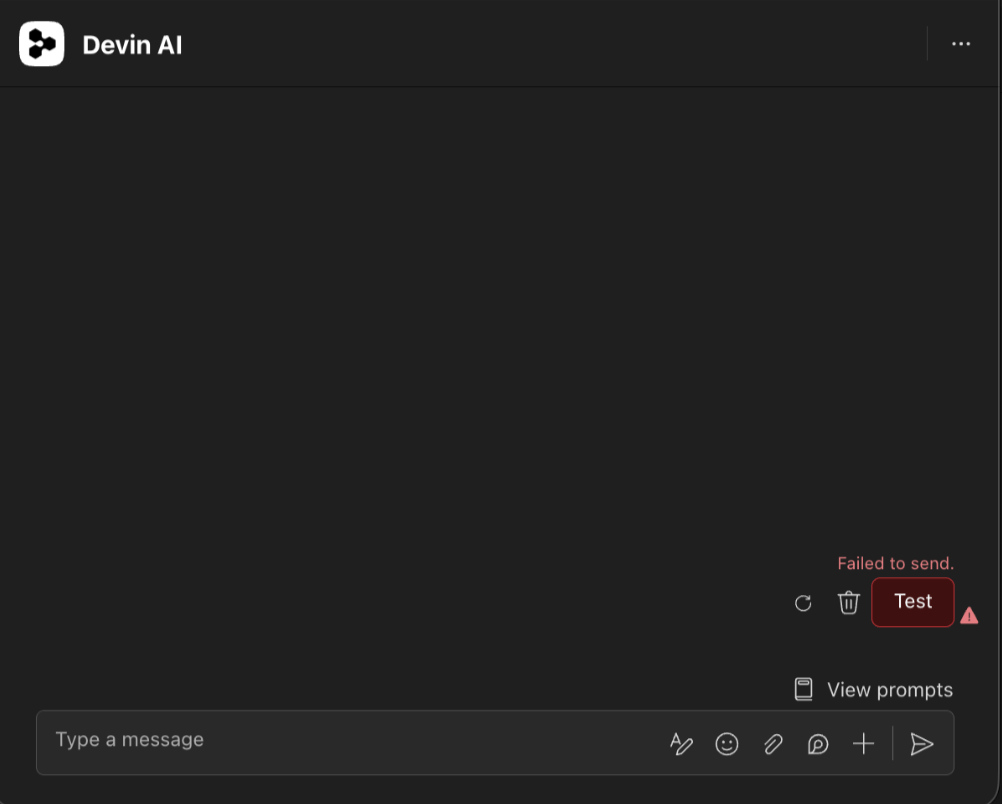
Some group chat members can’t see or @mention Devin AI
When someone adds an app to a group chat, every other member needs permission to use that app in order to see it in the chat roster or in the @mention picker. If the tenant’s app permission policy in the Teams admin center blocks third-party apps (globally or for specific users/groups), only users who are allowed to use the app will see it. For everyone else, the bot is effectively invisible and can’t be tagged, even though it’s technically in the chat. How to fix it- Allow Devin AI in the Teams admin center. A Teams admin goes to Teams apps > Manage apps and makes sure Devin AI is allowed.
- Check the app permission policies. The admin checks the app permission policies assigned to the affected users so the app is permitted for them.
- Refresh Teams. Once that’s done, the other members may need to refresh their Teams client for the bot to show up in the @mention picker.
Resource-specific consent (RSC) blocked or not granted
Devin reads and posts Teams messages only through the RSC permissions listed above. Microsoft Teams grants them to one team or chat at a time, when the Devin AI app is added there. If a team never granted RSC, Devin can’t read its channels, even when your tenant is connected to Devin. Without RSC in a team, Devin can’t run automations triggered by that team’s channel messages, read thread and channel context, see messages that don’t @mention it, or read the team’s members. How to fix it- Add Devin AI to the team. A team owner adds the Devin AI app to the team that contains the channel, from Connected teams > Install in team in Devin or from Microsoft Teams. Teams shows the requested permissions during installation and grants them to that team. If Devin AI is already there, update it to the latest version.
- Check that Devin AI is allowed in the Teams admin center. If Devin AI can’t be added, a Teams admin goes to Teams apps > Manage apps, makes sure Devin AI is allowed, and checks that the app permission policies assigned to the team owners allow it.
- Ask your Microsoft 365 admin to check the tenant RSC setting. If Devin AI is installed and Devin still can’t read the team, your tenant may block RSC consent. Your admin can check and change this setting by following Microsoft’s Configure consent settings guide. After the setting changes, remove Devin AI from the team and add it again.