Overview
Custom roles and RBAC give you the ability to fine-tune access to the Devin application. Enterprise administrators can create custom roles with specific permissions and assign them to users or IdP groups, providing granular control over what actions users can perform within your Devin Enterprise deployment.
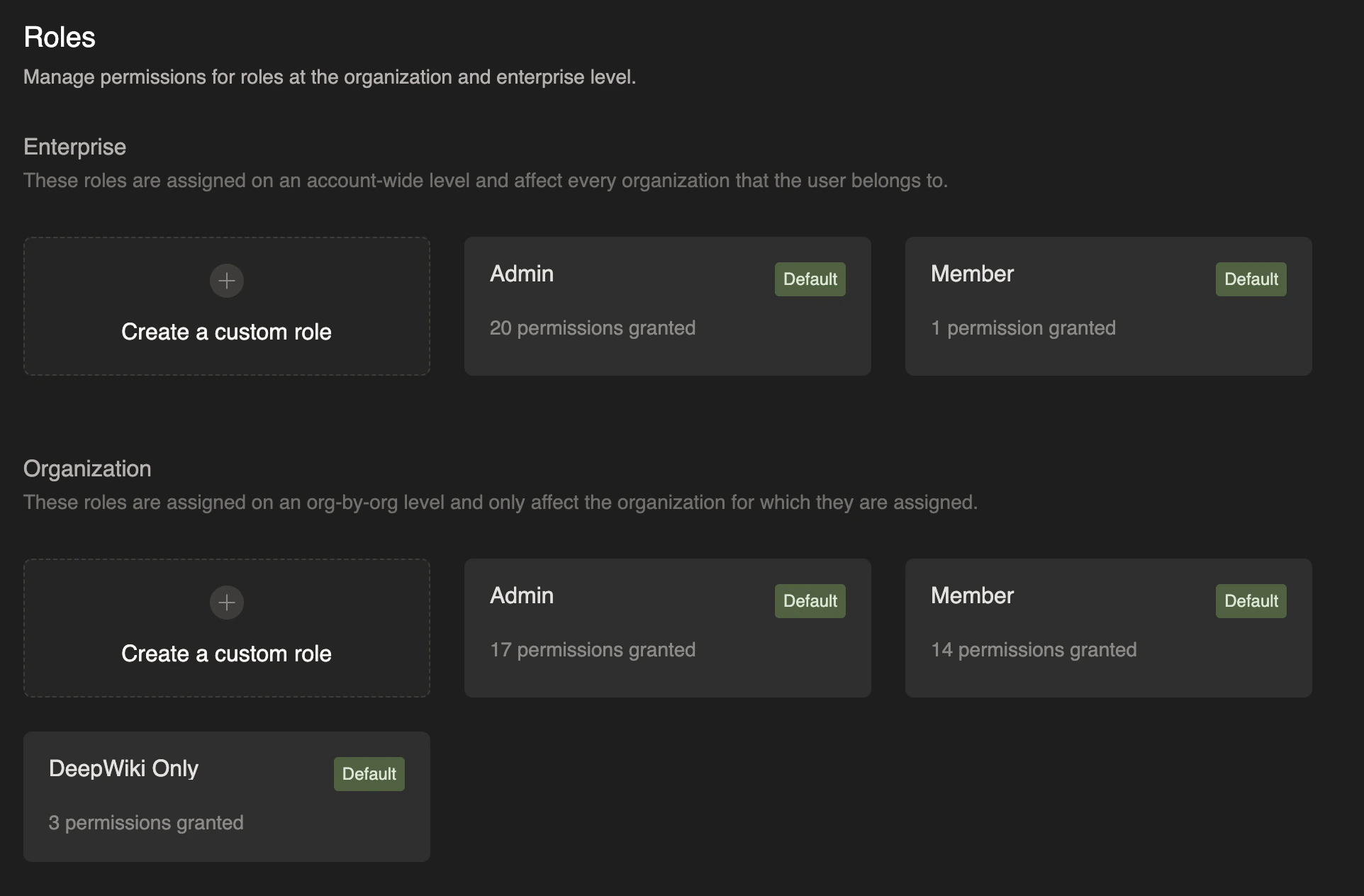
Devin Enterprise implements a two-tier role system with distinct scopes and capabilities: organization-level roles and account-level roles.
Creating and Assigning Custom Roles
Enterprise admins or users with the Manage Account Membership permission are the only users who can configure custom roles. Navigate to your enterprise settings and select the “Roles” tab to manage both organization-level and account-level roles.
To create a custom role:
- Navigate to Enterprise Settings > Roles
- Click “Create a custom role” for either Organization or Enterprise level
- Provide a descriptive role name
- Select the specific permissions you want to grant
- Save the role
Once created, custom roles can be assigned to individual users or IdP groups through the membership management interface:
- Enterprise admins or users with the Manage Account Membership permission can navigate to the “Enterprise members” page in Enterprise settings and assign account-level roles
- Please note that this is the same set of users who are able to create, edit, and delete custom roles
- Organization admins or users with the Manage Organization Membership permission can navigate to the “Organization members” page and assign organization-level roles
- Please note that these users are able to assign custom roles on the organization level, but creating, editing, or deleting custom roles requires Manage Account Membership (enterprise-level) permissions
We currently do not support multiple roles per user, but this feature is on our roadmap and we plan to support it soon. Each user can currently be assigned only one role per organization and one account-level role.
Organization-Level Roles
Organization-level roles are assigned on an organization-by-organization basis and do not apply outside of the assigned organization. These roles control access to resources and actions within a specific organization.
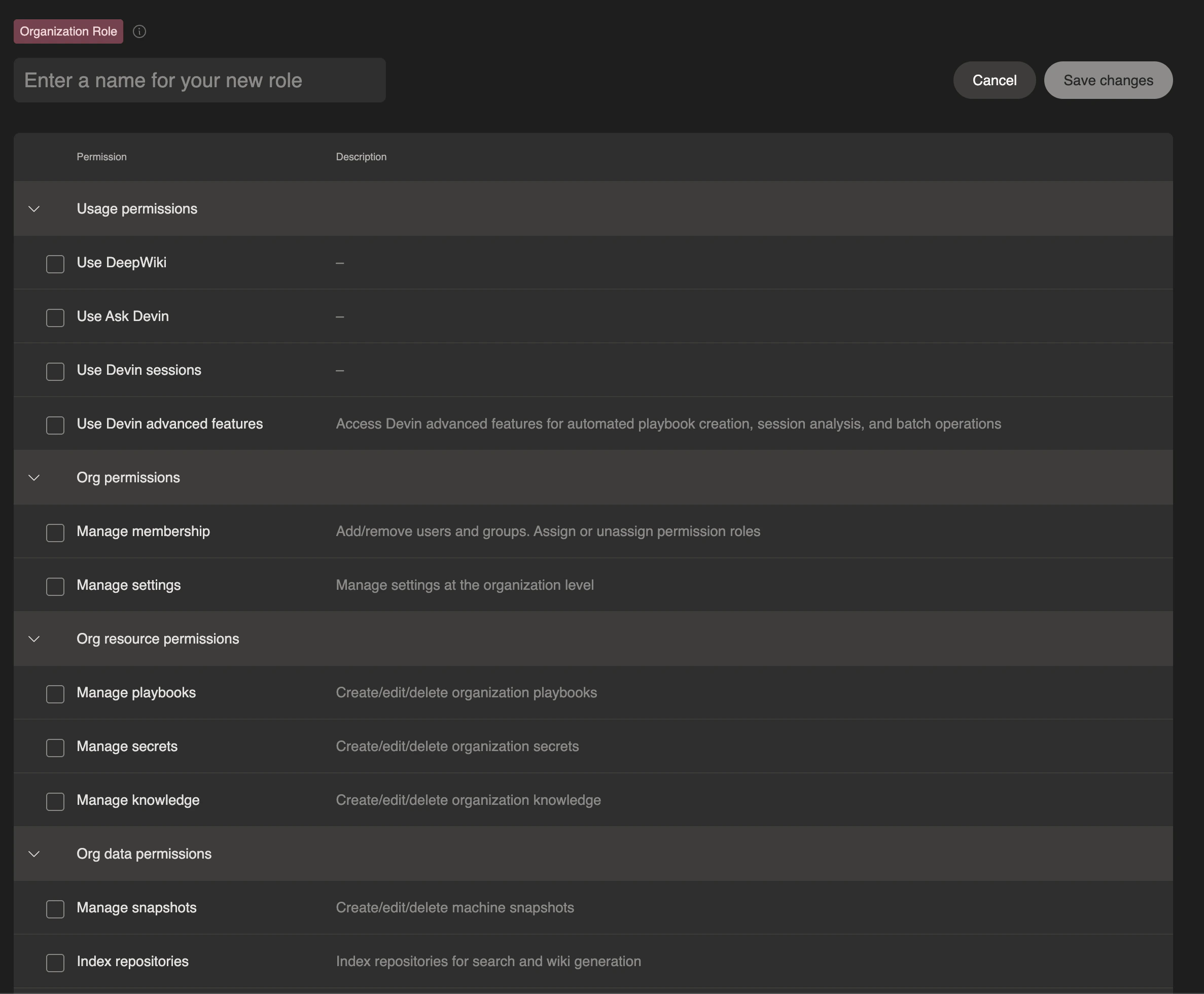
Organization-level roles can be configured with the following permissions:
| Permission | Description |
|---|
| Use DeepWiki | Access to DeepWiki functionality |
| Use Ask Devin | Access to Ask Devin feature |
| Use Devin Sessions | Access to create and use Devin sessions |
| Manage Membership | Add/remove users and groups. Assign or unassign permission roles |
| Manage Settings | Manage settings at the organization level |
| Manage Playbooks | Create/edit/delete organization playbooks |
| Manage Secrets | Create/edit/delete organization secrets |
| Manage Knowledge | Create/edit/delete organization knowledge |
| Manage Snapshots | Create/edit/delete machine snapshots |
| Index Repositories | Index repositories for AskDevin and DeepWiki generation |
| Manage Sessions | Edit Devin sessions from other users in the organization |
| View Sessions | View Devin sessions from other users in the organization |
| Manage API Keys | Create/delete/use API keys |
| Manage MCP Servers | Create/edit/delete MCP servers |
| View Metrics | View organization metrics |
| View Consumption | View organization consumption |
- Admin: Full administrative access within the organization
- Member: Standard user access with core functionality
- DeepWiki Only: Limited access restricted to DeepWiki and AskDevin functionality, including repository indexing permissions
Account-Level Roles (Enterprise Roles)
Account-level roles (also known as enterprise-level roles) are assigned across the entire enterprise and apply to every organization within the enterprise. Users with account-level roles automatically inherit corresponding organization-level permissions in all organizations that they are a member of.
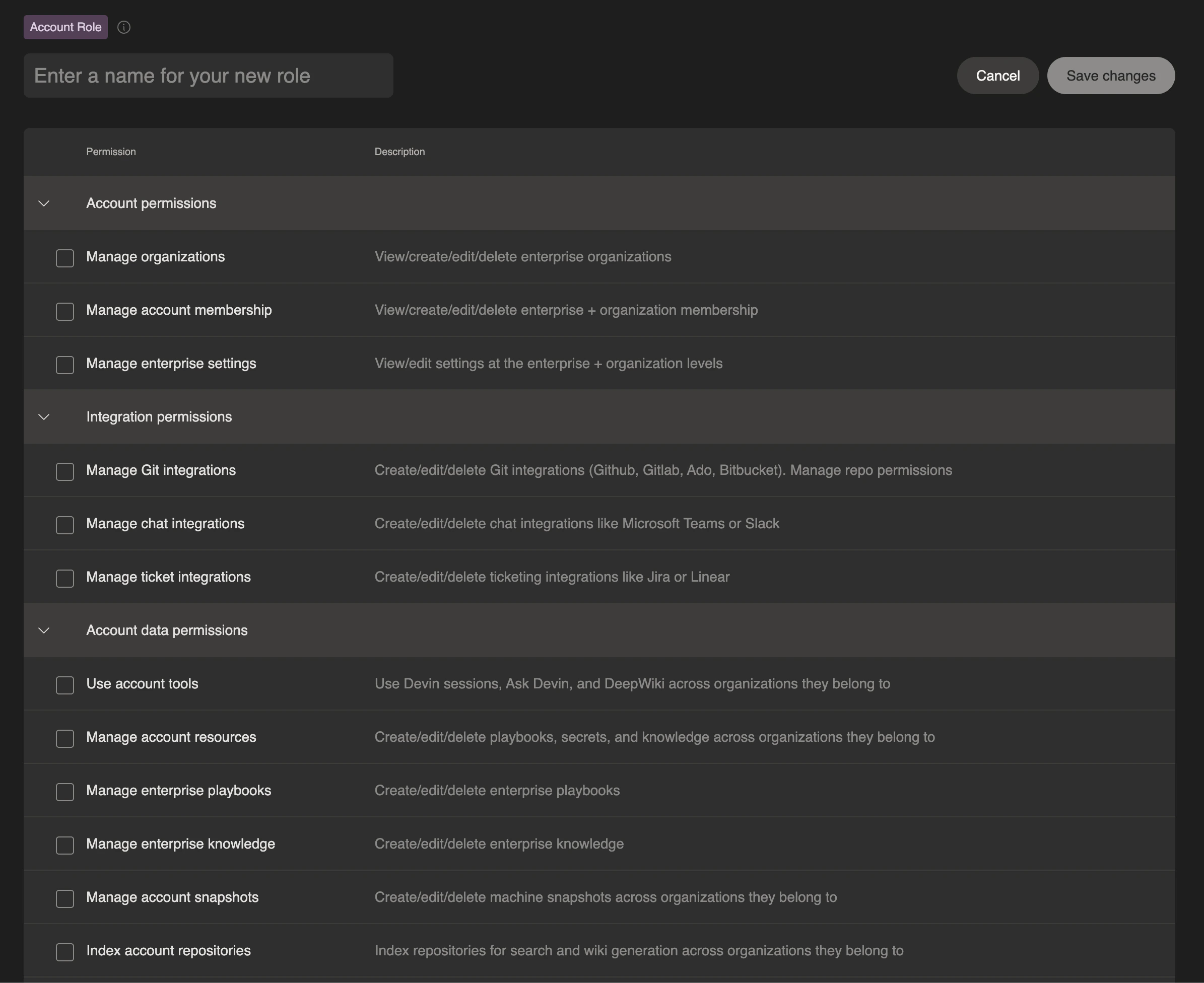
Account-level roles can be configured with the following permissions:
| Permission | Description |
|---|
| Manage Organizations | View/create/edit/delete enterprise organizations |
| Manage Account Membership | View/create/edit/delete enterprise + organization membership. Create/edit/delete custom roles |
| Manage Enterprise Settings | View/edit settings at the enterprise + organization levels |
| Manage Git Integrations | Create/edit/delete Git integrations (GitHub, Gitlab, ADO, Bitbucket). Manage repo permissions and repo indexing |
| Manage Chat Integrations | Create/edit/delete chat integrations like Microsoft Teams or Slack |
| Manage Ticket Integrations | Create/edit/delete ticketing integrations like Jira or Linear |
| Use Account Tools | Use Devin sessions, Ask Devin, and DeepWiki across any org |
| Manage Account Resources | Create/edit/delete playbooks, secrets, and knowledge across any org |
| Manage Account Snapshots | Create/edit/delete machine snapshots in any org. Manage account level snapshots + index repos |
| Index Account Repositories | Index repositories for AskDevin and DeepWiki generation across the enterprise |
| Manage Sessions | Edit Devin sessions from other users across any org |
| View Sessions | View Devin sessions from other users across any org |
| View Enterprise Infra Details | View enterprise infrastructure details |
| Manage Account API Keys | Create/edit/delete/use API keys in the enterprise and any org |
| Manage Account MCP Servers | Create/edit/delete MCP servers across any org |
| View Account Metrics | View enterprise metrics |
| Manage Billing | View/edit consumption for the enterprise |
- Admin: Full administrative access across the entire enterprise
- Member: Standard user access across all organizations in the enterprise
Auto Assign a Role based on SSO IdP Group
You can automatically assign roles to users based on their Identity Provider (IdP) group membership. This streamlines user access management by ensuring users inherit the correct permissions upon authentication.
- Navigate to Enterprise Settings > Members
- Configure IdP group mappings to associate group names with specific roles
- When users authenticate via SSO, they automatically receive the role assigned to their IdP group
Your SSO provider must send the groups array in the SSO assertion. For detailed setup instructions, see IdP Group Integration. Best Practices
- Principle of Least Privilege: Grant users only the minimum permissions necessary for their role
- Use IdP Groups: Leverage IdP group integration for easier management of role assignments at scale
- Regular Audits: Periodically review role assignments and permissions to ensure they remain appropriate
- Descriptive Naming: Use clear, descriptive names for custom roles to make their purpose obvious
- Documentation: Maintain internal documentation of your custom roles and their intended use cases
Common Issues
If a user is not receiving the expected permission,
- Verify the user is assigned to the correct role for that specific organization
- Ensure the role has the necessary permissions configured
For additional support with role configuration, contact your Devin Enterprise administrator or reach out to support.