

Sample use cases
Departments with delegated admins
Acme Corp has 10 departments. Each department head manages the limits of their orgs. Central IT sets each department’s total. This example shows two of them. Alice, the enterprise admin, creates a budget for each department under the Account budget. She shares each one with its department admin. Each department admin creates a budget for each of their orgs.
Department budgets under the Account budget
- Bob, the Engineering department admin, can set limits and temporary limits on any budget under Engineering. For example, he can give Payments a temporary 6,000 ACU limit for a busy week.
- Bob cannot raise Engineering’s 30,000 ACU limit. Only Alice can.
- Usage in every Engineering org counts toward the 30,000 ACU limit, even when the org budgets add up to more.
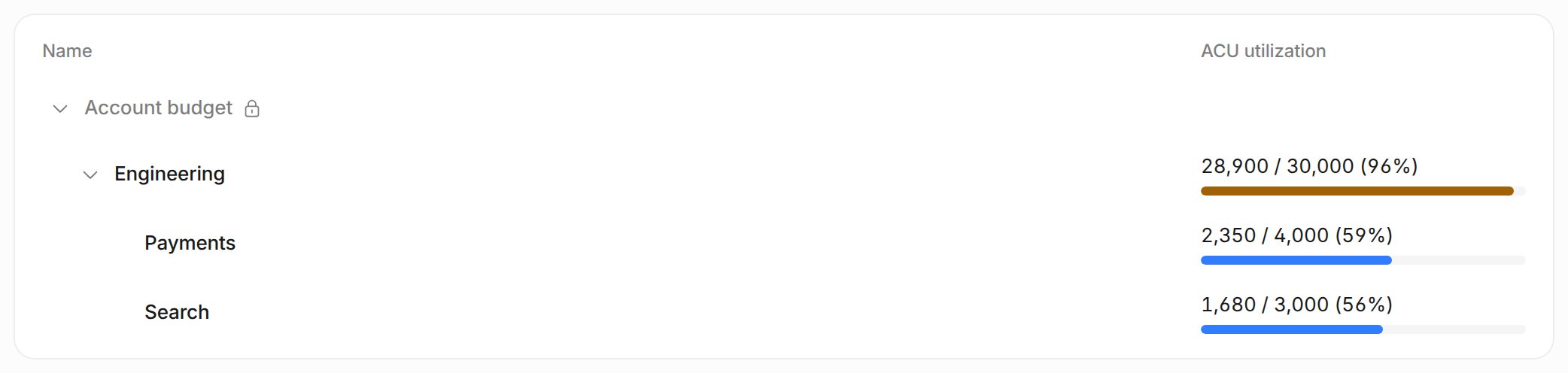
The Budgets page as a department admin, with the Account budget locked
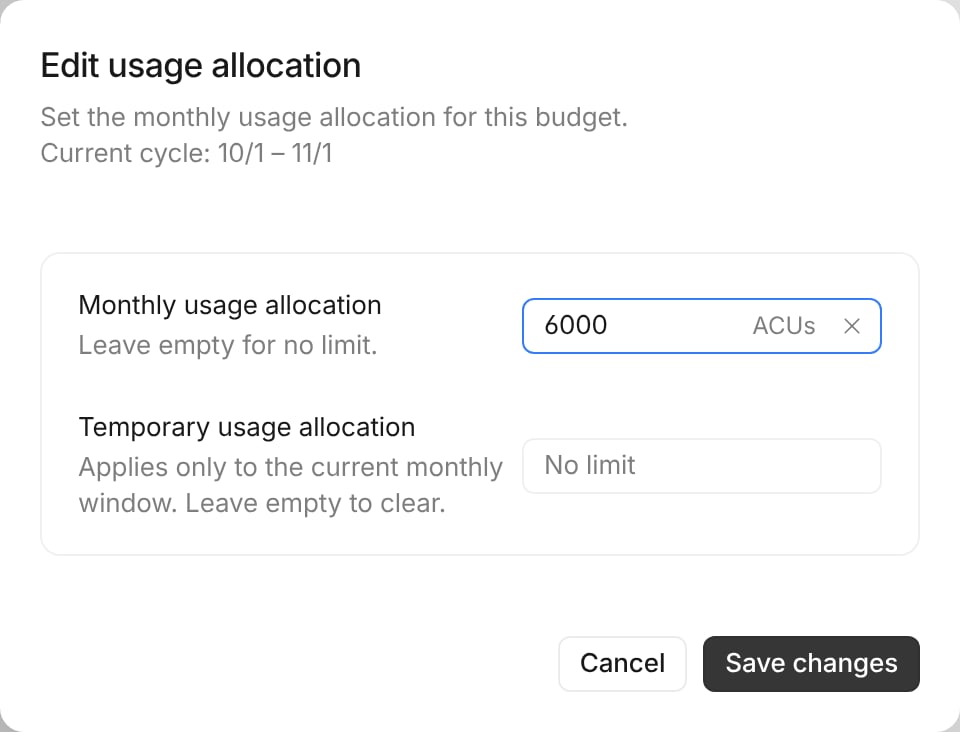
A department admin raising a child budget limit
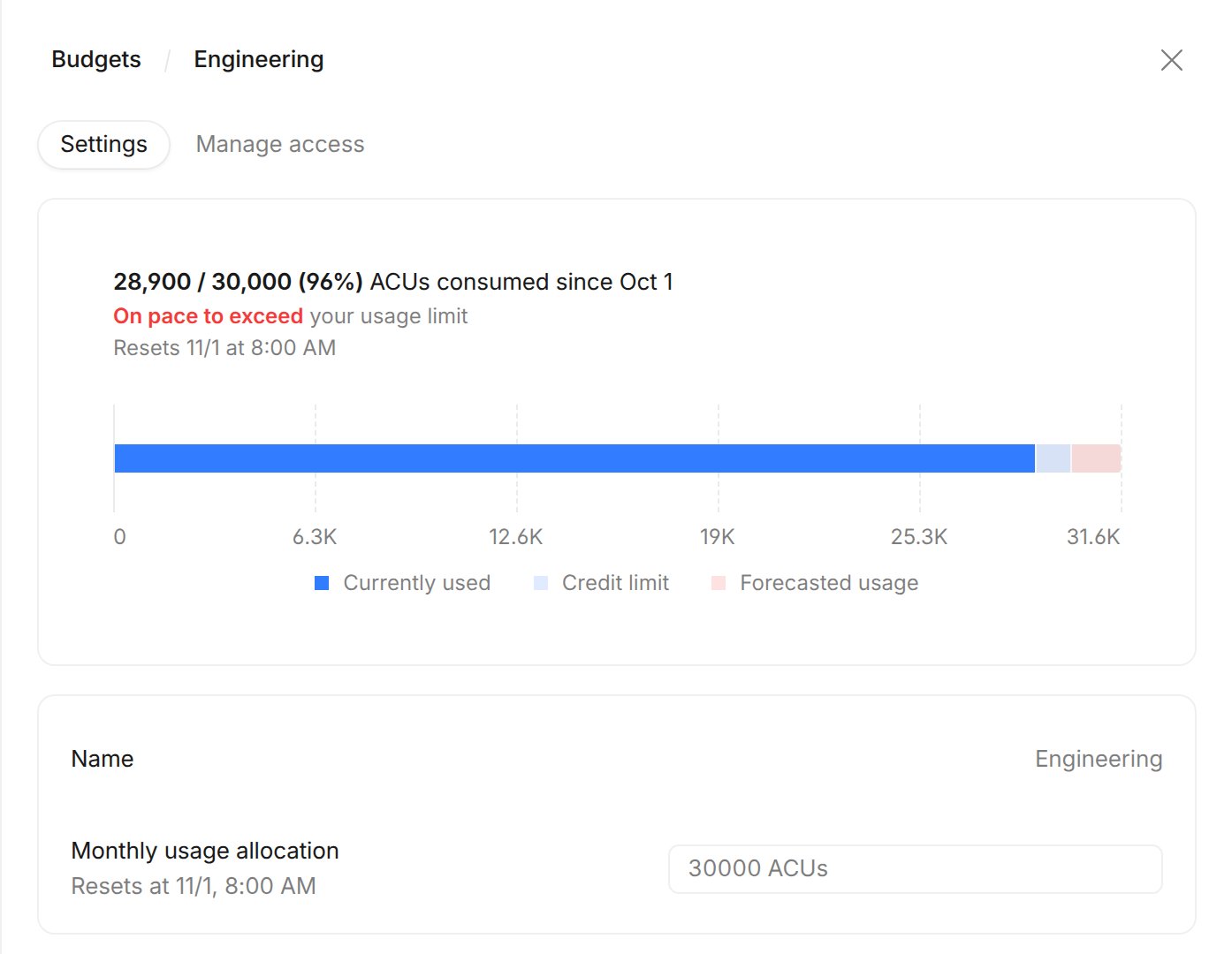
A department admin cannot change the department budget limit
A project bucket with higher user limits
Every developer gets 200 ACUs a month. For the migration initiative, Acme Corp sets aside 5,000 ACUs and lets people on the project use more. Keep the Developer tools orgs in a Developer tools budget with a 200 ACU default tier. Create a Migration initiative budget with a 5,000 ACU limit. Put the project’s org in it, and give it a 1,000 ACU default tier. Both budgets sit under the Account budget.
Developer tools and Migration initiative budgets with their tiers
- Carol, a developer on the project, can use up to 1,000 ACUs in the Migration org. She can use up to 200 ACUs in the Developer tools orgs.
- The whole project can never use more than 5,000 ACUs in a month.
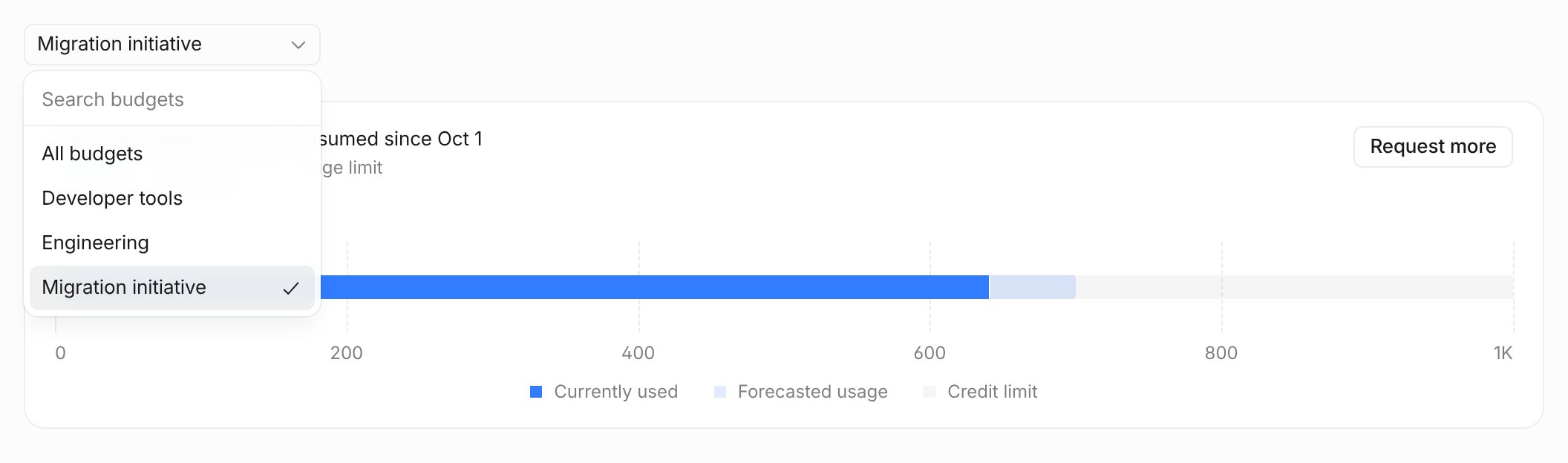
My Analytics budget picker with several budgets
How budgets work
Budget tree
Each enterprise account has one budget tree. The root is the Account budget, and child budgets sit under it. A tree can be up to three levels deep. A budget can hold one organization or several. Each organization belongs to exactly one budget. New organizations go under the Account budget. For example, Acme Corp sets a 100,000 ACU limit on its Account budget. Engineering splits its pool into three child budgets.
Budget tree with budgets and user limit tiers
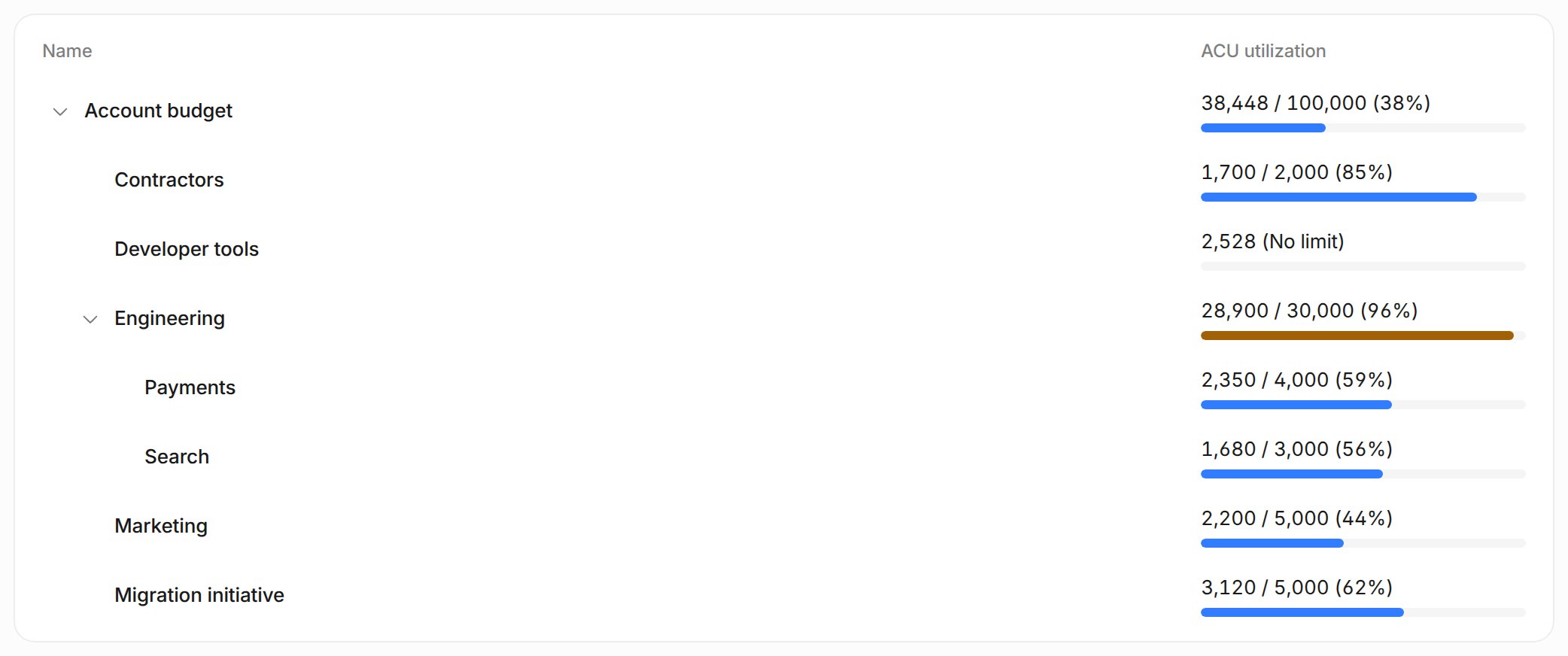
Budget tree with utilization per budget (mock data)
Budget limits
A budget limit caps the combined ACU usage of the budget’s orgs and the orgs in its child budgets, for one monthly window. Anull limit means unlimited.
- Usage counts toward every ancestor. Usage in a child budget also counts toward its parent and the Account budget.
- An exhausted ancestor blocks its children. When any budget on the path runs out, usage in that branch stops.
- Child limits can add up to more than the parent limit. The parent limit still caps their combined usage.
- A budget with no limit is still capped by its parents.
What happens when a budget runs out
When a budget runs out, usage stops for its orgs. Usage also stops when any parent budget runs out. Usage resumes in the next monthly window, or when an admin raises the limit or sets a temporary limit.- Devin sessions: new sessions cannot start, and running sessions sleep. Users see “Increase your organization’s usage limit.”
- Devin CLI and Desktop local agent: requests are blocked. Users see “Your organization has reached its monthly usage limit. Ask an account admin to raise it, or wait for the limit to reset next month.”
- Devin Review: full reviews stop. Automatic reviews and reviews started from the Devin Review page fall back to a diff-only analysis with no findings. Re-runs, reviews started through the API, and Review chat are rejected.
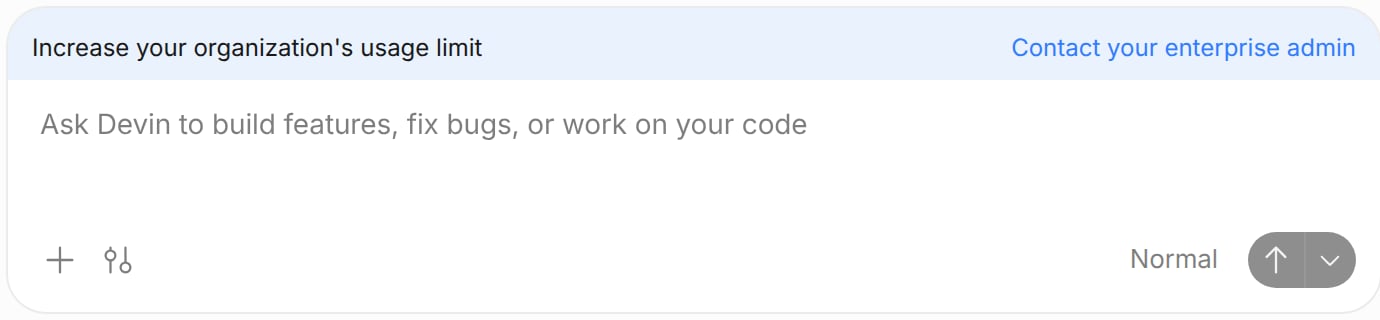
Composer banner when the budget is used up
Monthly window
Budget limits, user limits, and temporary limits reset at the start of each monthly window. Each window starts on the start day of your billing phase. It is not always the calendar month. For example, if the billing phase starts on the 15th, the windows run from October 15 to November 14, then from November 15 to December 14. A temporary limit replaces the budget limit for the rest of the current window. The permanent limit returns in the next window. A temporary user override expires at the end of the current window.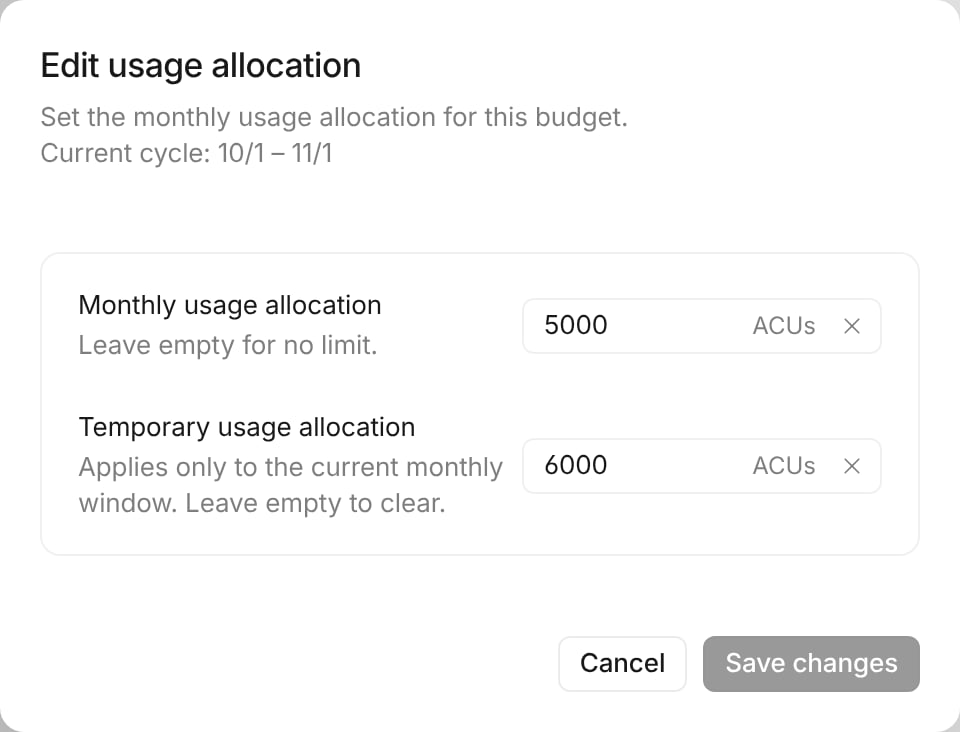
A temporary limit raises Marketing to 6,000 ACUs for this window only
User limits in a budget
User limits cap how much one person can use in a monthly window. Each budget with a linked organization has its own user limits, and they apply within that budget only.- Tiers. Each budget has its own tiers and one default tier. A tier sets the monthly ACU limit for its members.
- IdP group mappings. Map an identity provider group to a tier. Members of the group get that tier.
- Overrides. Set a permanent or a temporary limit for one user.
- Request policies. Each tier sets how limit-increase requests are handled.
unconditionalandconditionalapprove requests up to the tier’smax_limit.manualsends requests to an admin for review. - Scope. A user limit counts only the user’s usage in that budget’s orgs.
- Copy and clear. Copy tiers from another budget or the account. You can also copy IdP group mappings, assignments, and overrides. Clear all tiers in a budget to start over.
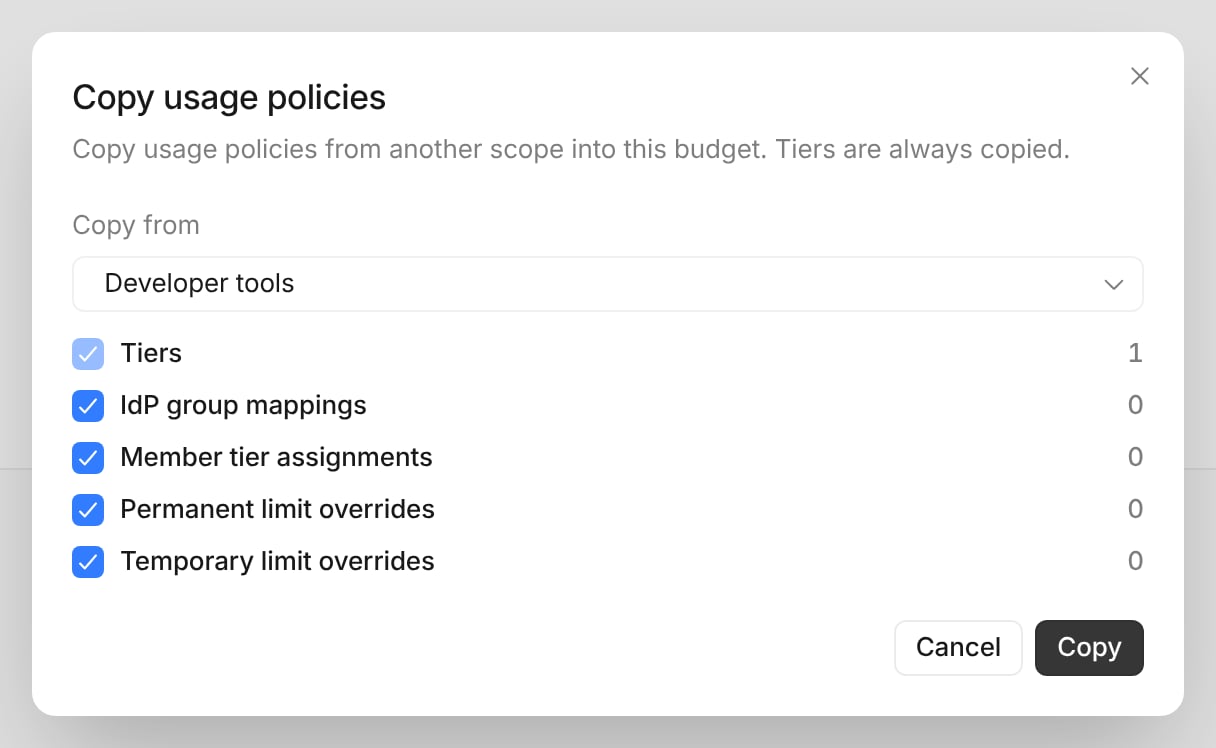
Copy usage policies dialog with Developer tools as the source
Who can manage a budget
Enterprise admins manage budgets in Enterprise Settings under Budgets. They manage the whole tree, including the Account budget.- Delegation. An enterprise admin can share a budget with a person or group in the Manage access tab. A delegated admin can create budgets under it, and set limits and temporary limits on those child budgets. Delegation requires separate enablement; reach out to your account team.
- A delegated admin cannot raise the shared budget’s own limit. Only an admin who manages the parent budget can change it.
- Members see their own usage and limit in My Analytics.
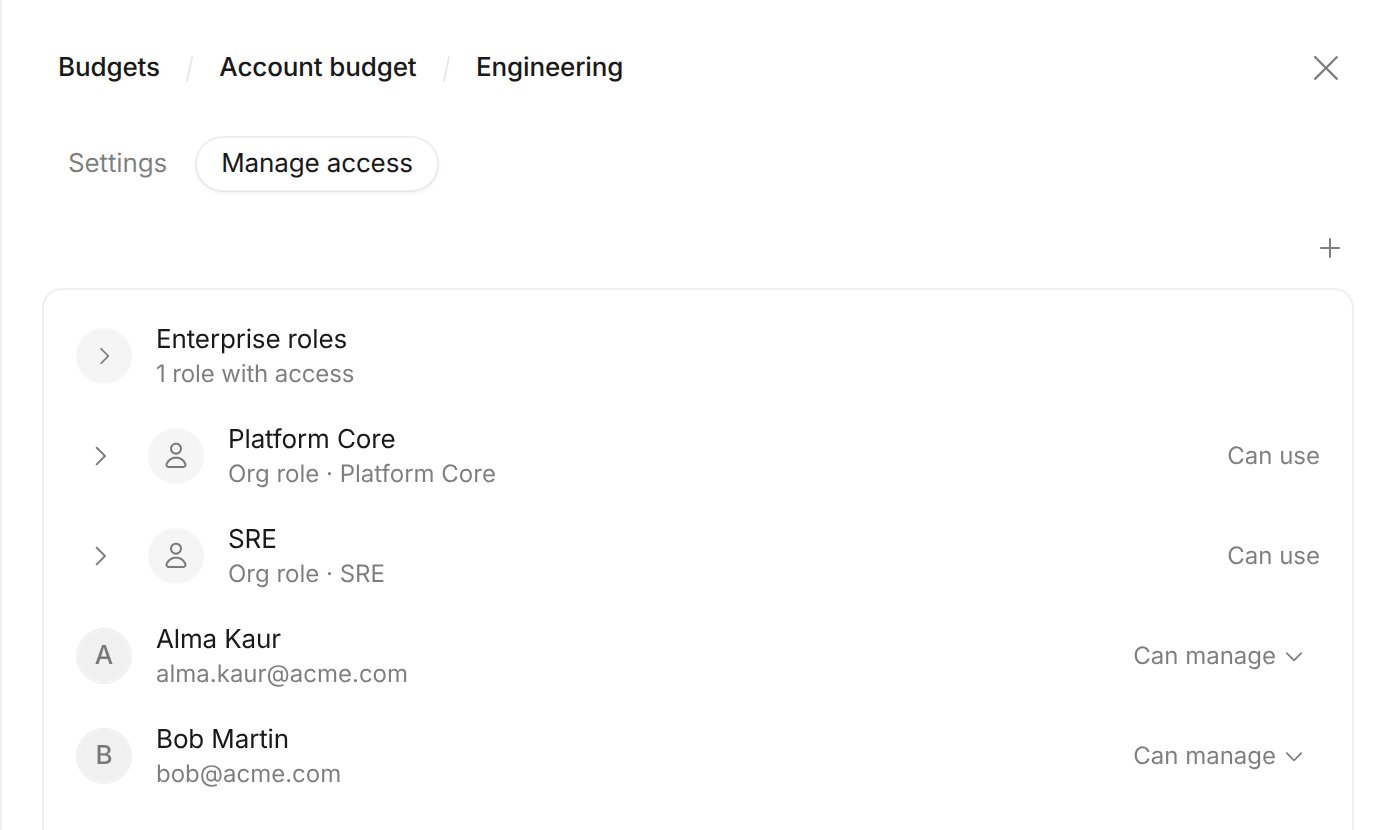
Manage access tab of the Engineering budget, with Bob as a manager
Frequently asked questions
Can org admins set an org's ACU limit?
Can org admins set an org's ACU limit?
Why does the org-limit endpoint return 409?
Why does the org-limit endpoint return 409?
409 when the org shares its budget with other orgs, or when it sits directly in the Account budget. The error reads “This organization has no limit of its own. Set the limit on its budget.” For example, if Globex, Initech, and Umbrella share one budget, a limit write for Globex returns 409.What happens to the older user-limit endpoints?
What happens to the older user-limit endpoints?
- Endpoints that take a user and no budget (
/v3beta1/enterprise/usage-policies/users/{user_id},/v3beta1/enterprise/users/{user_id}/consumption/acu-limits) set that user’s limit in one budget only: the budget of the user’s billing organization. The user’s limits in other budgets do not change. If that organization has no budget, the call returns409. - The account-wide tier, IdP group, and default user limit endpoints (
/v3beta1/enterprise/usage-policies/tiers,/idp-groups,/v3beta1/enterprise/users/consumption/acu-limits) still edit your account-wide tiers, which are no longer enforced.
Can a budget have separate cloud and local limits?
Can a budget have separate cloud and local limits?
When do limits reset?
When do limits reset?
Can an org be in two budgets?
Can an org be in two budgets?
Manage budgets with the V3 API
All requests authenticate with an enterprise service user token. Callers need the ManageAcuLimits account permission or delegated access to the budget. Usehttps://api.devin.ai as the base URL. See the V3 API overview for authentication and service user guidance.
Budget-scoped collection endpoints take the budget in the path: /v3/enterprise/usage-policies/budgets/{budget_id}/.... Endpoints that address a single tier or request (/tiers/{tier_id}, /requests/{request_id}) resolve the budget from the tier or request. On /v3 they return HTTP 404 for an account-wide tier or request; those stay on /v3beta1 (see User-level ACU limits).
Every endpoint on this page also answers on the same path under /v3beta1.
PATCH semantics
For thePATCH endpoints:
- An omitted field is unchanged.
- A field set to
nullis cleared. - A field set to a value is created or updated.
Budget endpoints
List budgets
budget_id: the identifier to use in budget-scoped paths.parent_budget_id: the parent budget;nullfor the account’s root budget.org_ids: the organizations linked to this budget. Their usage counts against it. Empty when no organization is linked.status:activeorarchived.cycle_acu_limit: the budget’s limit on the ACU consumption charged to it and its descendants per monthly billing window;nullmeans unlimited.temporary_cycle_acu_limit: a limit that overridescycle_acu_limituntil the end of the current monthly billing window;nullwhen none is live.
Update a budget
null clears a limit. At least one field is required.
parent_budget_id: moves the budget, with its sub-budgets, under another active budget. The root budget cannot be moved, and budgets nest at most three levels deep.cycle_acu_limit,temporary_cycle_acu_limit: the budget’s limits, as in the list response.
temporary_cycle_acu_limit again restarts it for the current window. For a budget linked to exactly one organization, cycle_acu_limit also becomes the organization’s ACU limit.
Tier endpoints
List tiers
priority first, newest tier first within a priority. Each tier looks like:
is_default: whether this is the budget’s default tier.cycle_acu_limit: the default per-cycle ACU limit for each member;nullmeans uncapped.policy: how limit-increase requests against the tier are handled —unconditionalandconditionalapprove up tomax_limit,manualrequires admin review.max_limit: the maximum limit to which increase requests are approved;nullapproves without a ceiling. Alwaysnullwhencycle_acu_limitisnull.priority: ranks the tier among a user’s IdP-group-mapped tiers — the highest value wins, ties broken by newest tier. An explicit user assignment overrides the ranking, and the default tier never ranks.member_count: the number of users currently in the tier. For the default tier this counts every budget member not in another tier.
Create a tier
201 with the created tier.
Get a tier
Update a tier
Delete a tier
204 on success. The default tier cannot be deleted (promote another tier first). A tier that still has users must have them moved first, and any IdP group mappings to the tier must be removed first.
Tier user endpoints
List a tier’s users
cycle_acu_limit_override: the user’s permanent override, if any.temporary_cycle_acu_limit: the user’s temporary override, present only while it is live in the current monthly billing window.effective_cycle_acu_limit: the limit currently enforced for the user;nullmeans uncapped.limit_source: where the effective limit comes from —override(permanent),temporary_override, ortier.membership: why the user is in the tier —explicit(directly assigned),idp_group(via their winning IdP group mapping), ordefault(fallback to the default tier).
Assign a user to a tier
204 on success. Moving a user from another tier clears any per-user override, so they start out inheriting the destination tier’s limit.
Remove a user from a tier
204 on success.
User endpoints
Get a user’s limits
tier_id/tier_name: the tier the user’s limit resolves from (explicit assignment, IdP group mapping, or the default tier);nullwhen the budget has no tiers.tier_cycle_acu_limit: the tier’s own limit before any override;nullmeans uncapped.pending_request_id/pending_request_cycle_acu_limit: the user’s pending limit-increase request (itsrequest_id, a string) and the limit it asks for, if any.
Set or clear a user’s override
kind is required when setting a value: permanent never expires; temporary expires at the end of the current monthly billing window.
Request body — clear all overrides
204 on success.
IdP group endpoints
Map an IdP group to a tier so its members inherit that tier automatically. Mappings are resolved live from group membership and never change a user’s explicit tier assignment — an explicit assignment always wins. A user in several mapped groups resolves to the highest-ranked mapped tier (highest tierpriority, ties broken by newest tier).
List IdP group mappings
?tier_id= to list only groups mapped to one tier:
Get an IdP group’s mapping
404 if the group has no mapping in the budget.
Map an IdP group to a tier
Unmap an IdP group
204 on success. The mapped tier stops applying to the group’s members; users with no explicit assignment and no other mapped tier fall back to the default tier.
Limit-increase request endpoints
Users can request a higher per-cycle limit. The requester’s tierpolicy decides what happens: unconditional and conditional auto-approve up to the tier’s max_limit, while manual holds the request for admin review through these endpoints.
List limit-increase requests
?status= (pending, approved, denied, expired) and ?user_id=:
request_id: a string. Pass it back unchanged in the request paths below.tier_id/tier_name: the requester’s tier within the budget;nullwhen the budget has no tiers.current_cycle_acu_limit: the limit currently enforced for the requester;nullmeans uncapped.status:expiredmeans the request was still pending when its billing cycle ended.reviewer: the admin who reviewed the request;nullwhile pending.
Get a limit-increase request
Approve a limit-increase request
409 if the request was already reviewed or the requester is no longer an account member.
Deny a limit-increase request
409 if it was already reviewed.
Example workflows
Set up a budget’s tiers
Find the budget, cap it at 2,000 ACUs a month, then create a default tier so every budget member gets a 500 ACU monthly cap:Migrating from account-wide user limits
User limits are moving from the account level to budgets. Your organization limits do not change unless you merge budgets (option 2). With user limits in budgets, each team can have its own limits, and group and user limits live in one place. Until your enterprise switches, your account-wide tiers and overrides keep applying. To migrate, you need to be an admin who can edit budgets. Open Enterprise Settings > Usage policies. At the top is the banner “User limits are migrating to per-budget user limits.” Click the banner to show your budgets.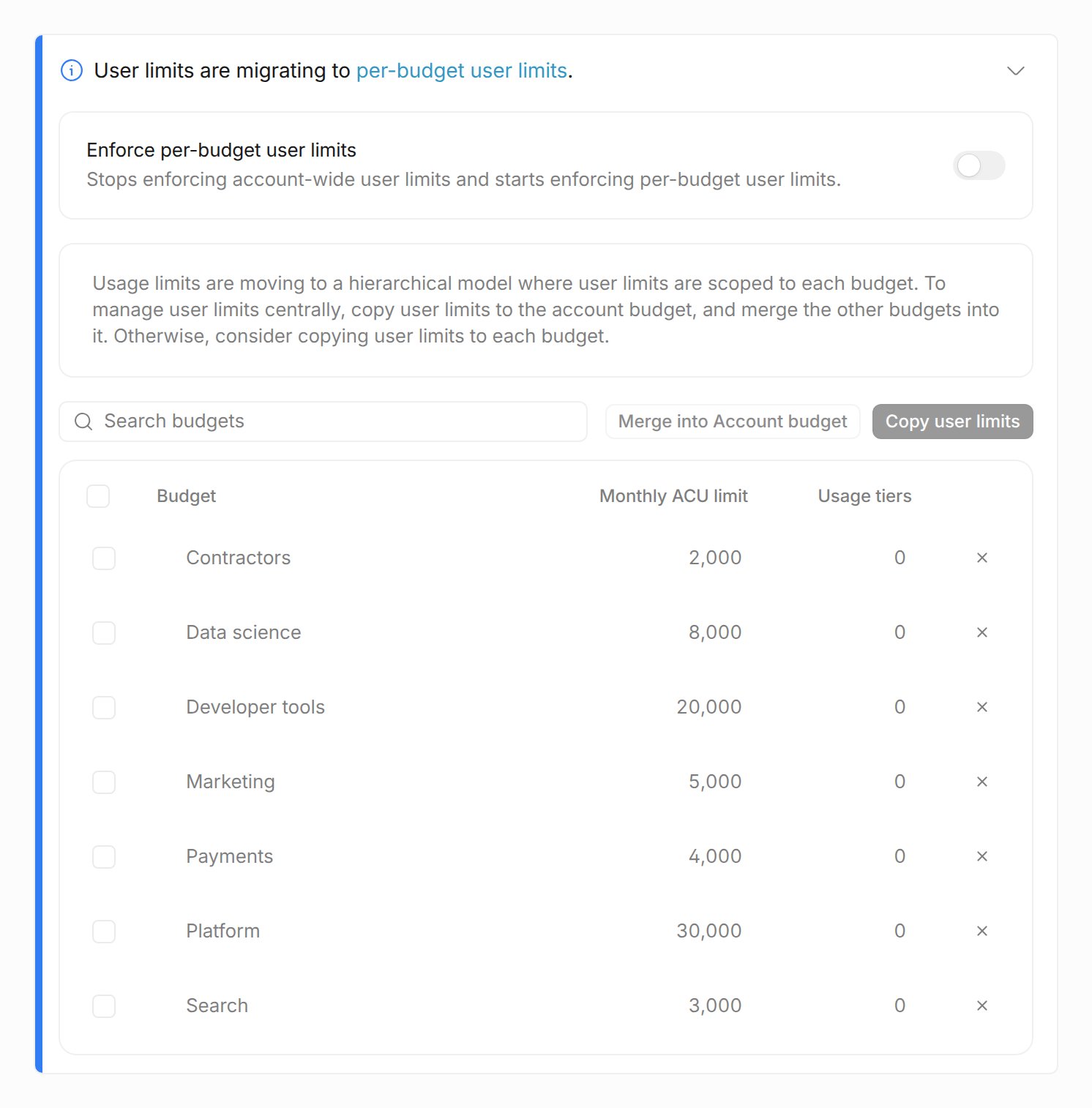
The migration banner, expanded to show your budgets
Option 1: Copy user limits to each budget
Select all budgets with the checkbox in the table header, then click Copy user limits. Every budget gets your current tiers. Under What to copy, IdP group mappings, assignments, and overrides are selected by default; keep them selected to copy them too.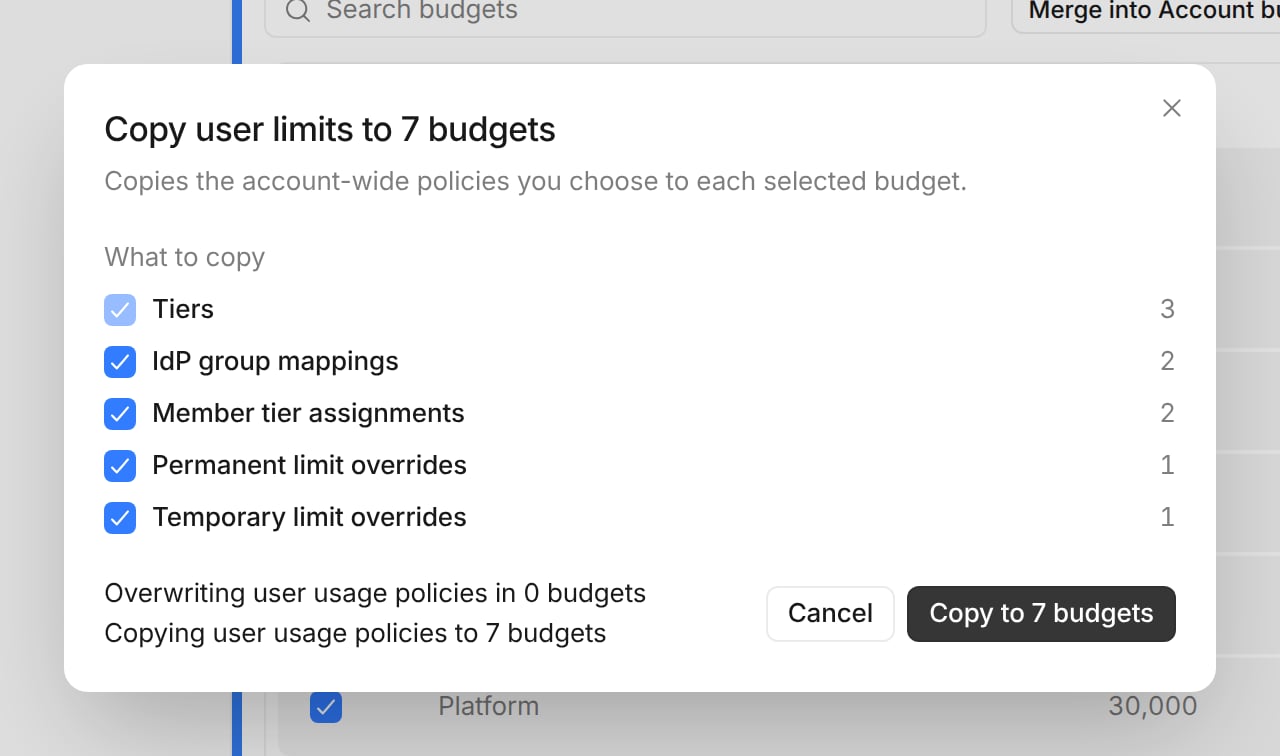
Copying user limits to every selected budget
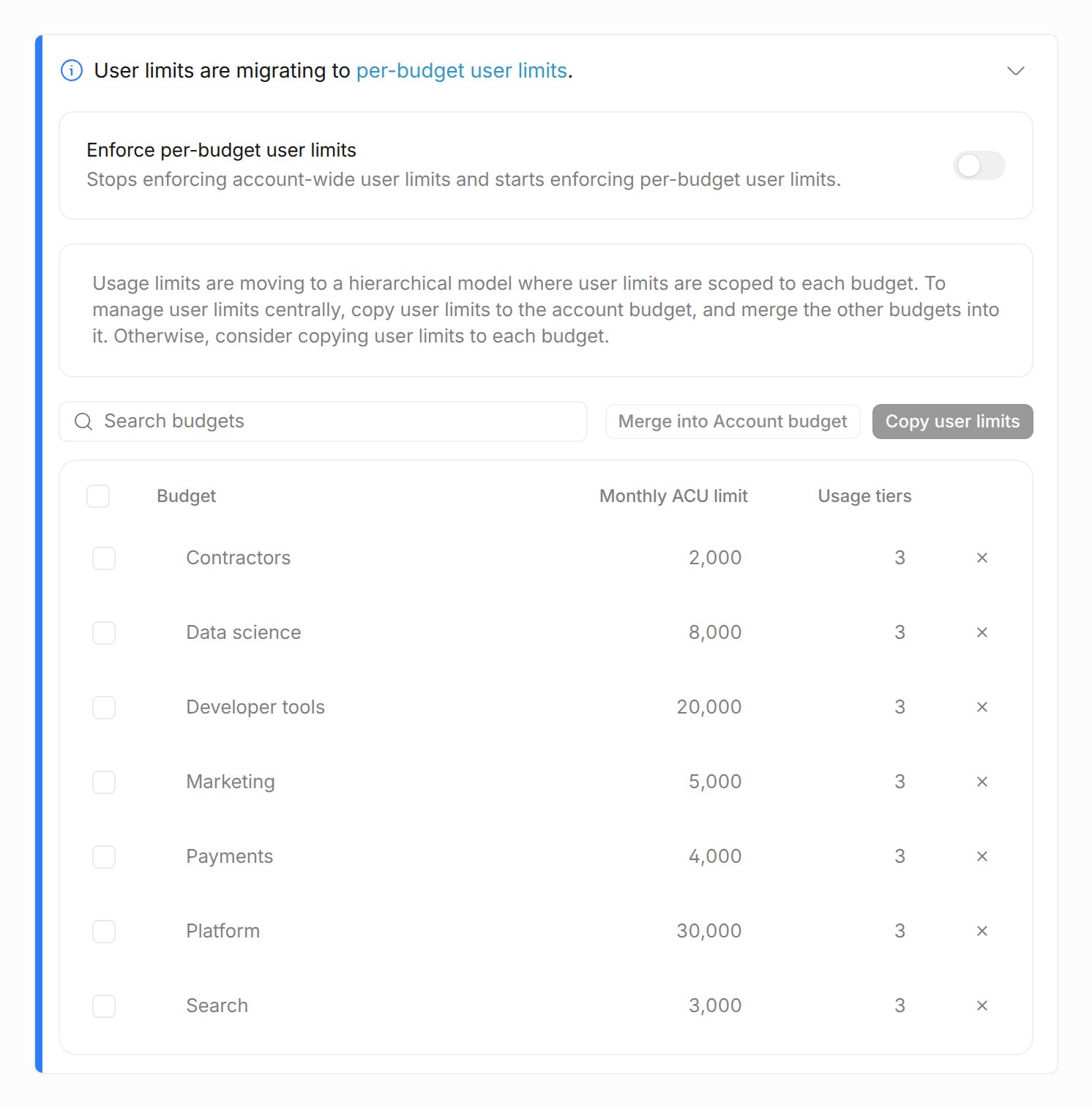
Each budget has the copied tiers
Option 2: One user limit per person; organization limits stop applying
- Select your Account budget and click Copy user limits. If your Account budget is not in the list, do steps 2 and 3 first; it is listed once it holds an organization.
-
Select each of your other budgets and click Merge into followed by your Account budget’s name.
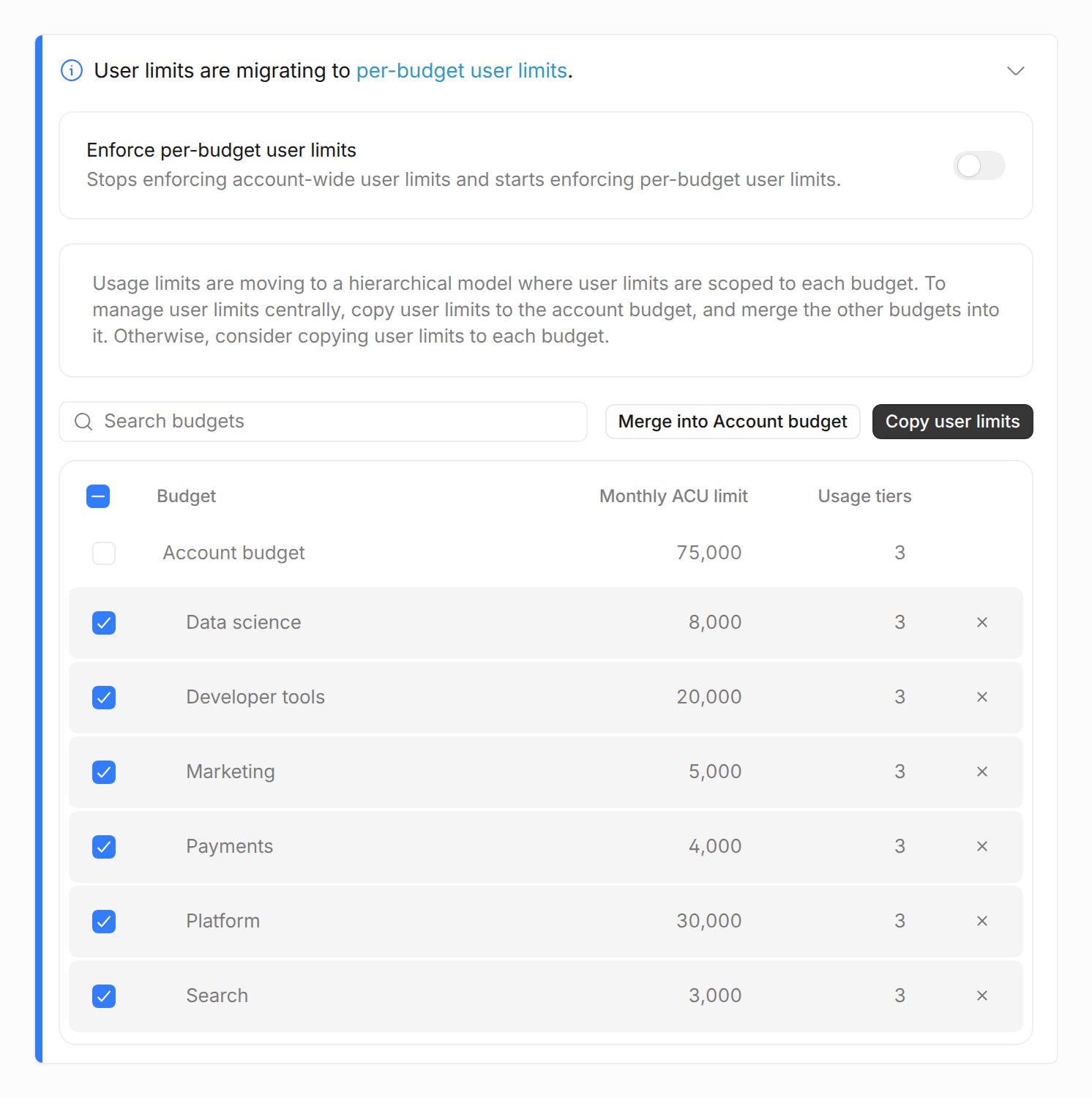
The other budgets selected, ready to merge into the Account budget
-
Confirm the merge.
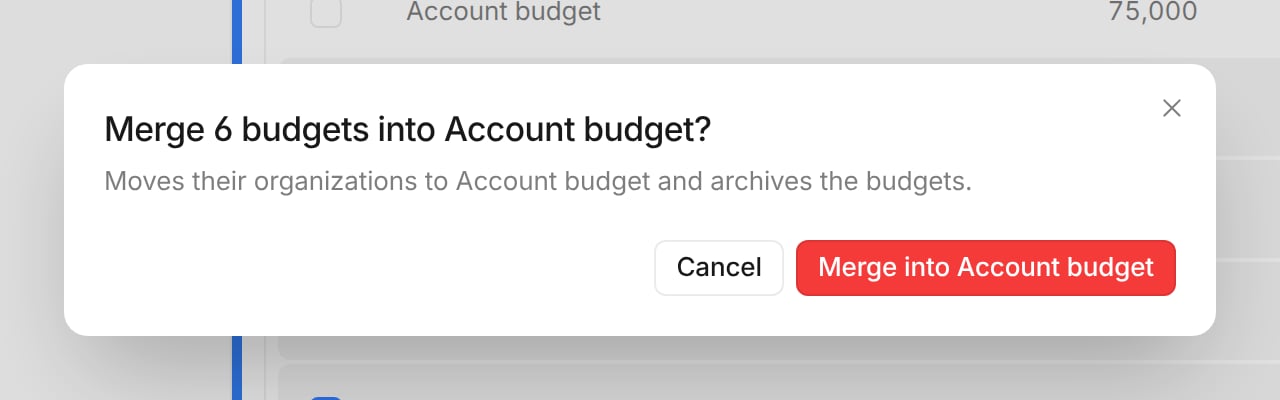
Confirming the merge
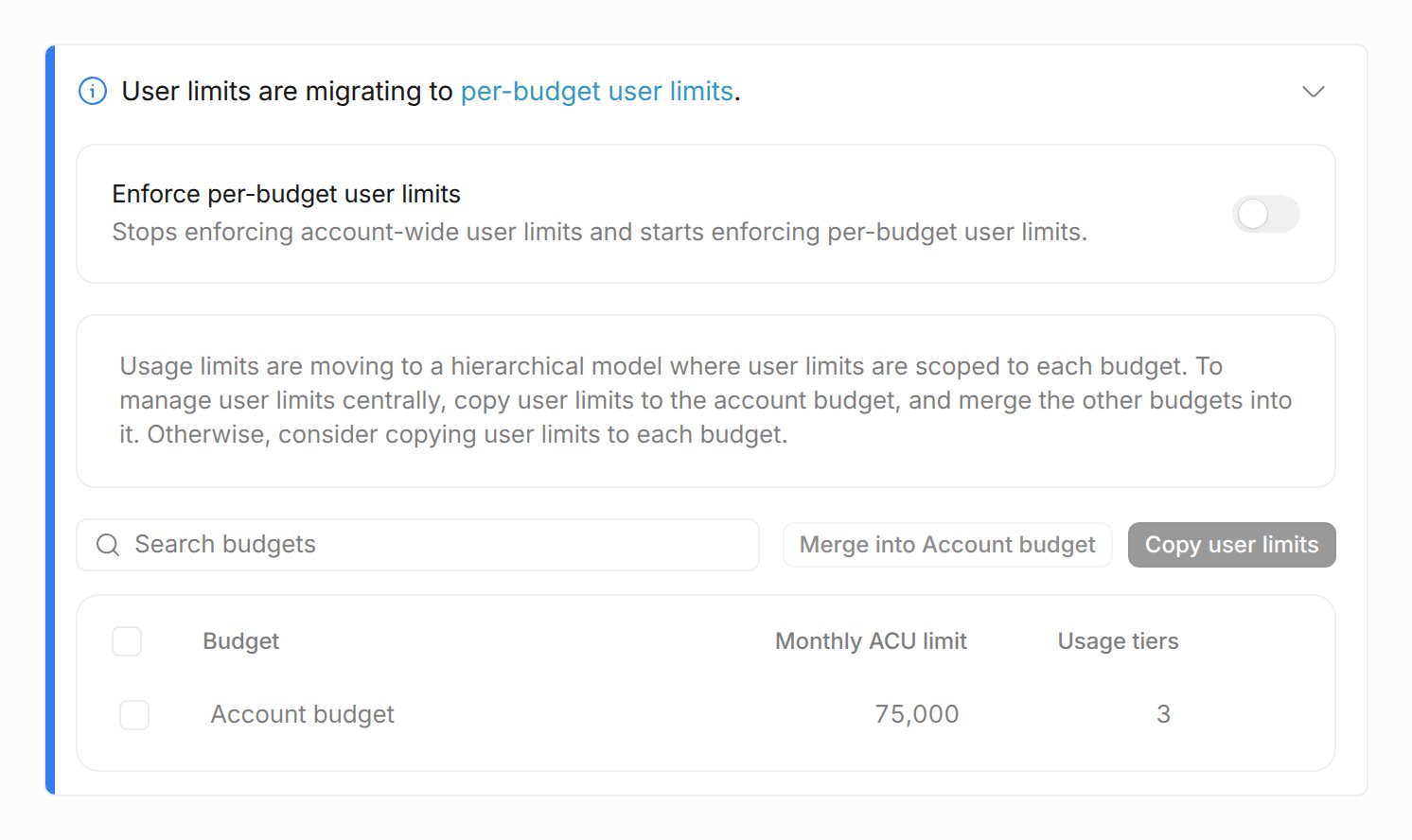
After the merge, the Account budget holds every organization
Option 3: Something else
Group organizations under budgets, and set different user limits per budget. See Departments with delegated admins or A project bucket with higher user limits for sample configurations. Your account team can also help set this up with you.Turn on enforcement
Turn on Enforce per-budget user limits. Before you confirm, Devin shows how many people would be blocked, based on their usage in the current billing cycle.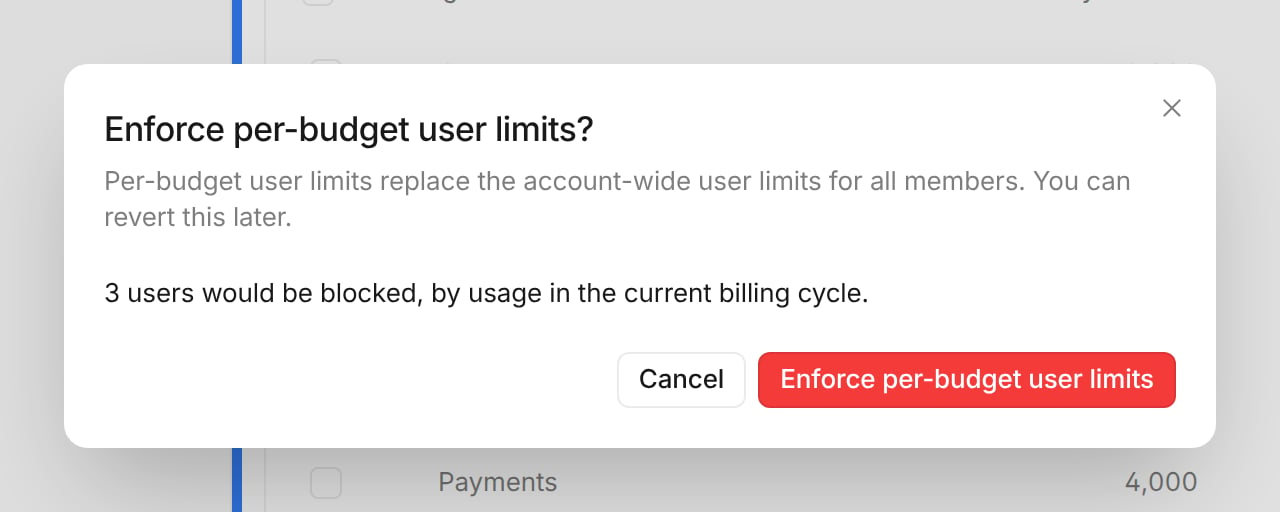
Confirming enforcement, with the number of people who would be blocked
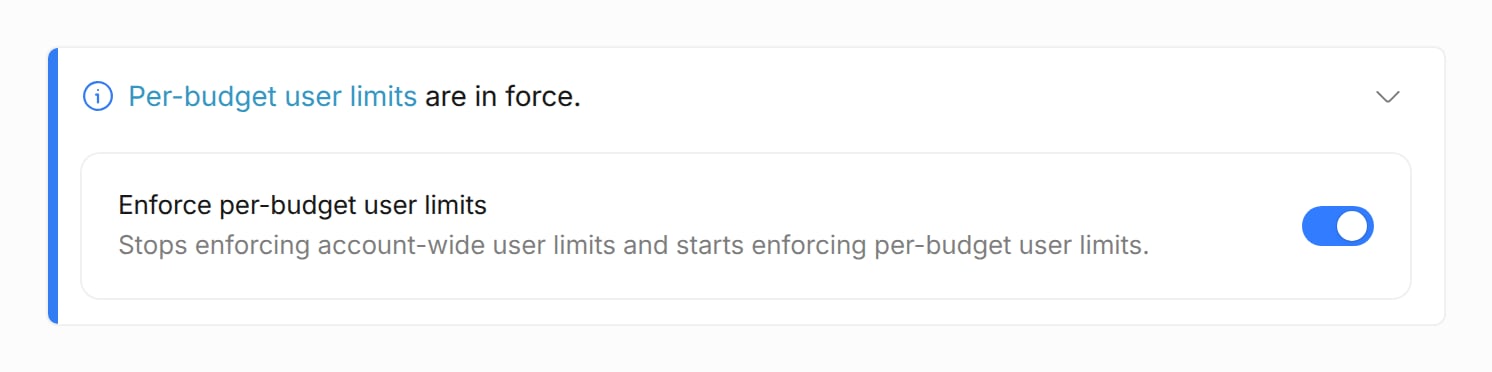
Per-budget user limits enforced
If you set limits through the API
Start using the budgets API. It sets each budget’s limit, tiers, and overrides under/v3/enterprise/usage-policies/budgets. The organization limits API (under /v3/enterprise/consumption/acu-limits/devin) remains supported. The older user-limit endpoints change meaning after the switch; see What happens to the older user-limit endpoints?