

Before you start
- Pro or Teams
- Enterprise
Make sure you have a Devin Pro or Teams account. macOS sessions are available by default.
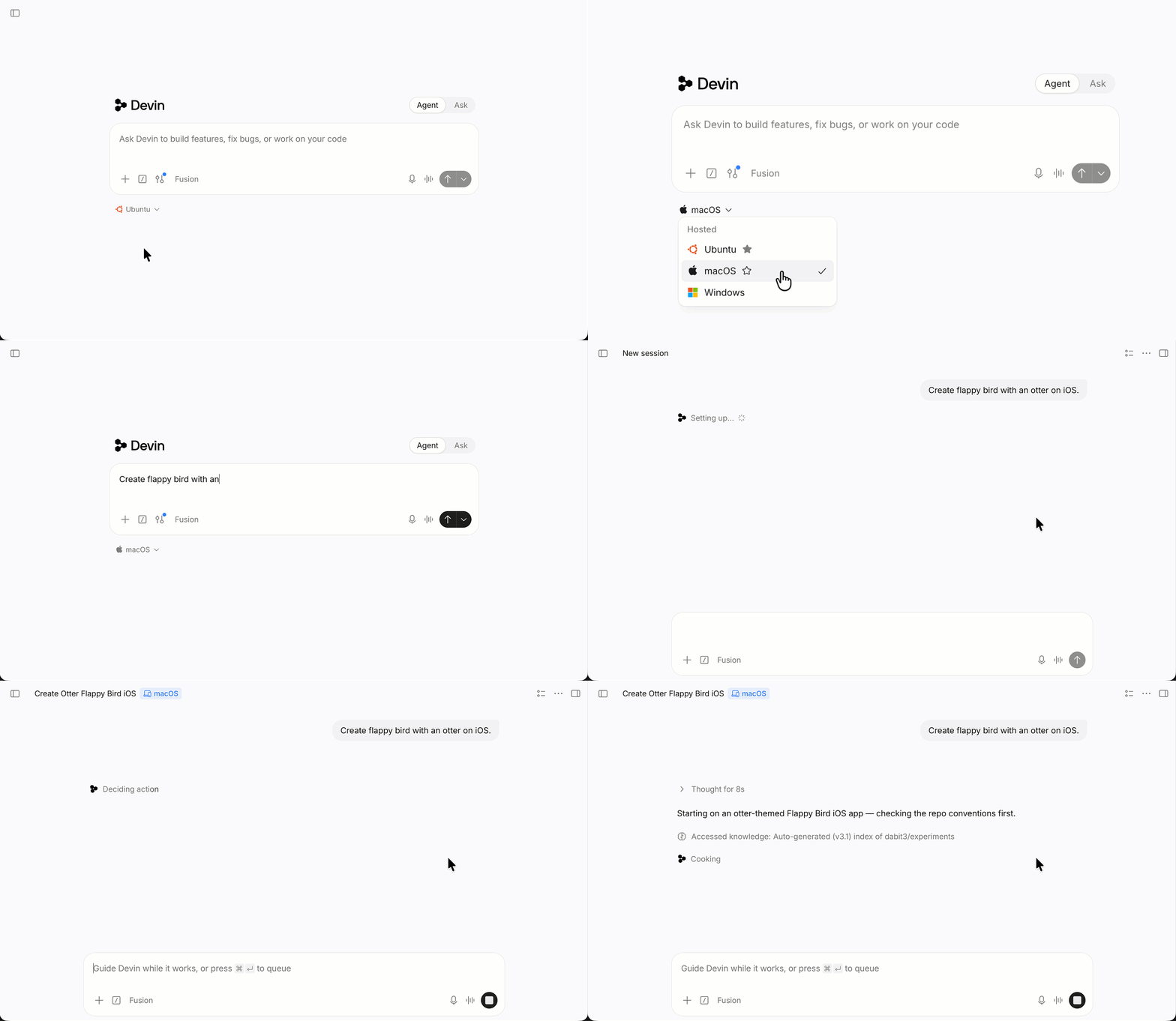
Step 1: Prompt Devin to build the app
Open Devin and choose macOS from the platform menu below the prompt box. Xcode, the iOS Simulator, and Homebrew are preinstalled.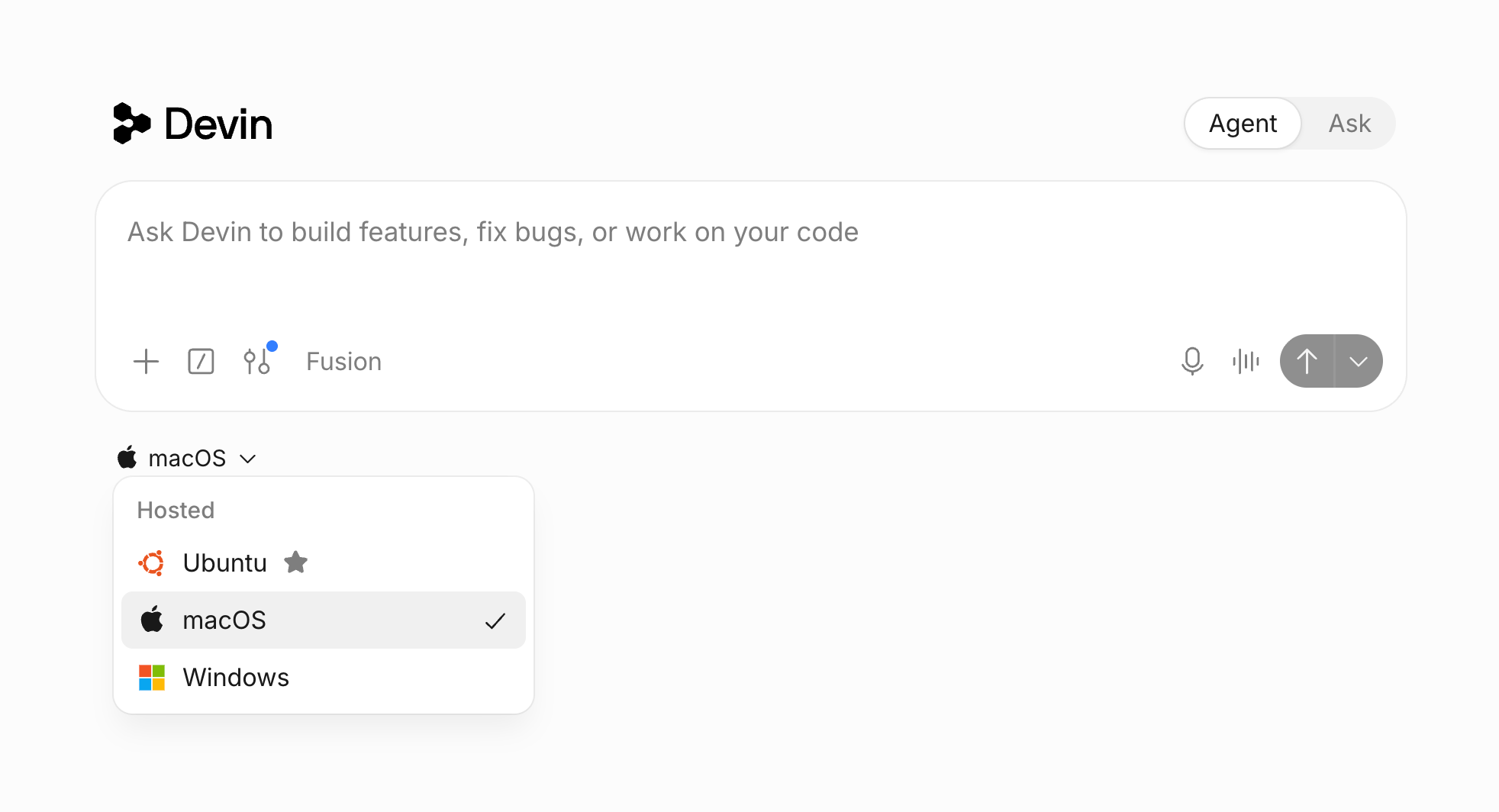
Step 2: Watch Devin build and test
Devin works through the task much like an iOS developer would: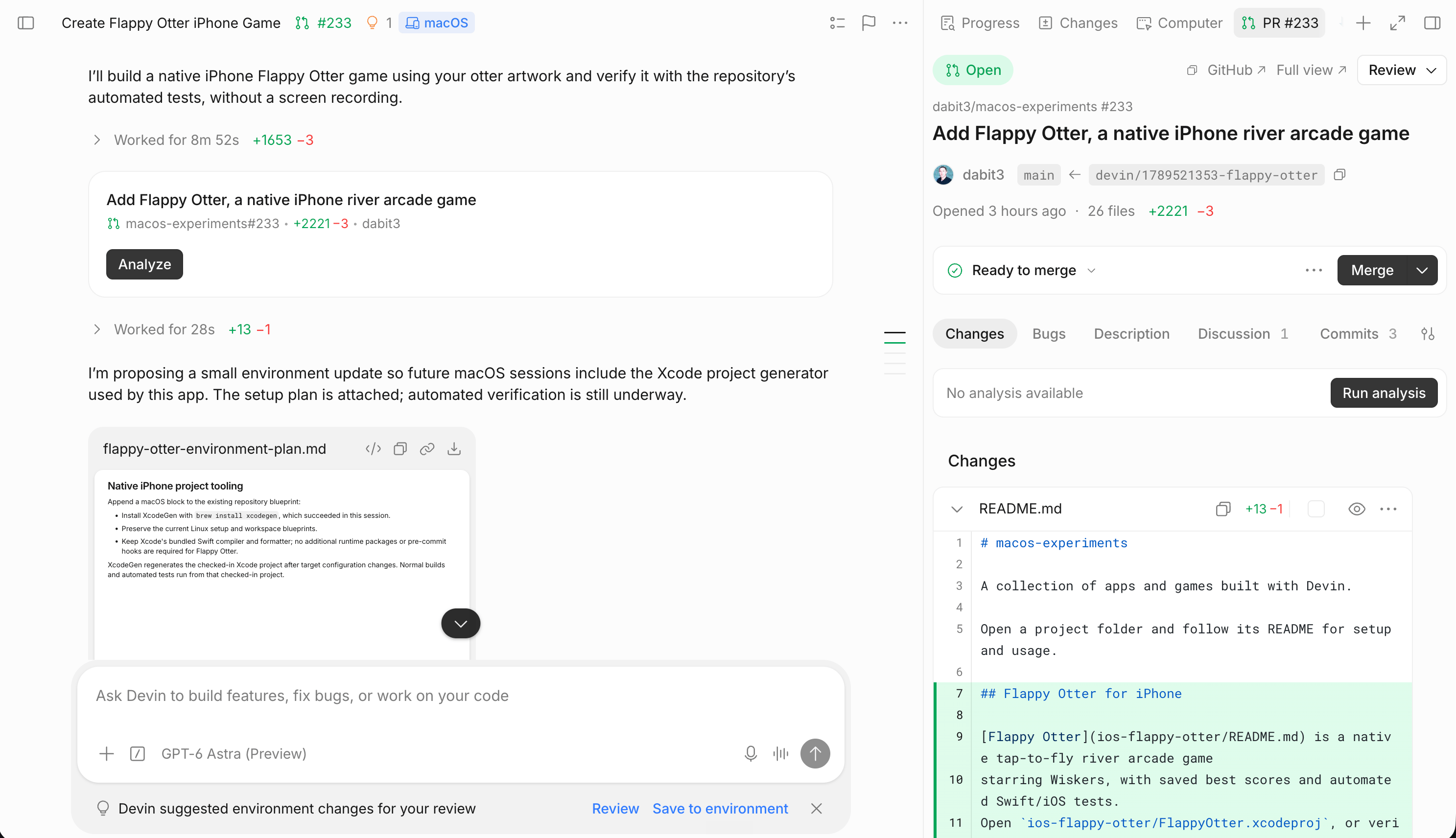
- Creates the project in Xcode
- Builds and fixes errors
- Runs the game in the Simulator
- Plays the game: taps to make the otter jump with Computer Use, checks that scoring and collisions work, and records the run.
- Shares the result: sends you the recording and opens a pull request if the session has a repository.
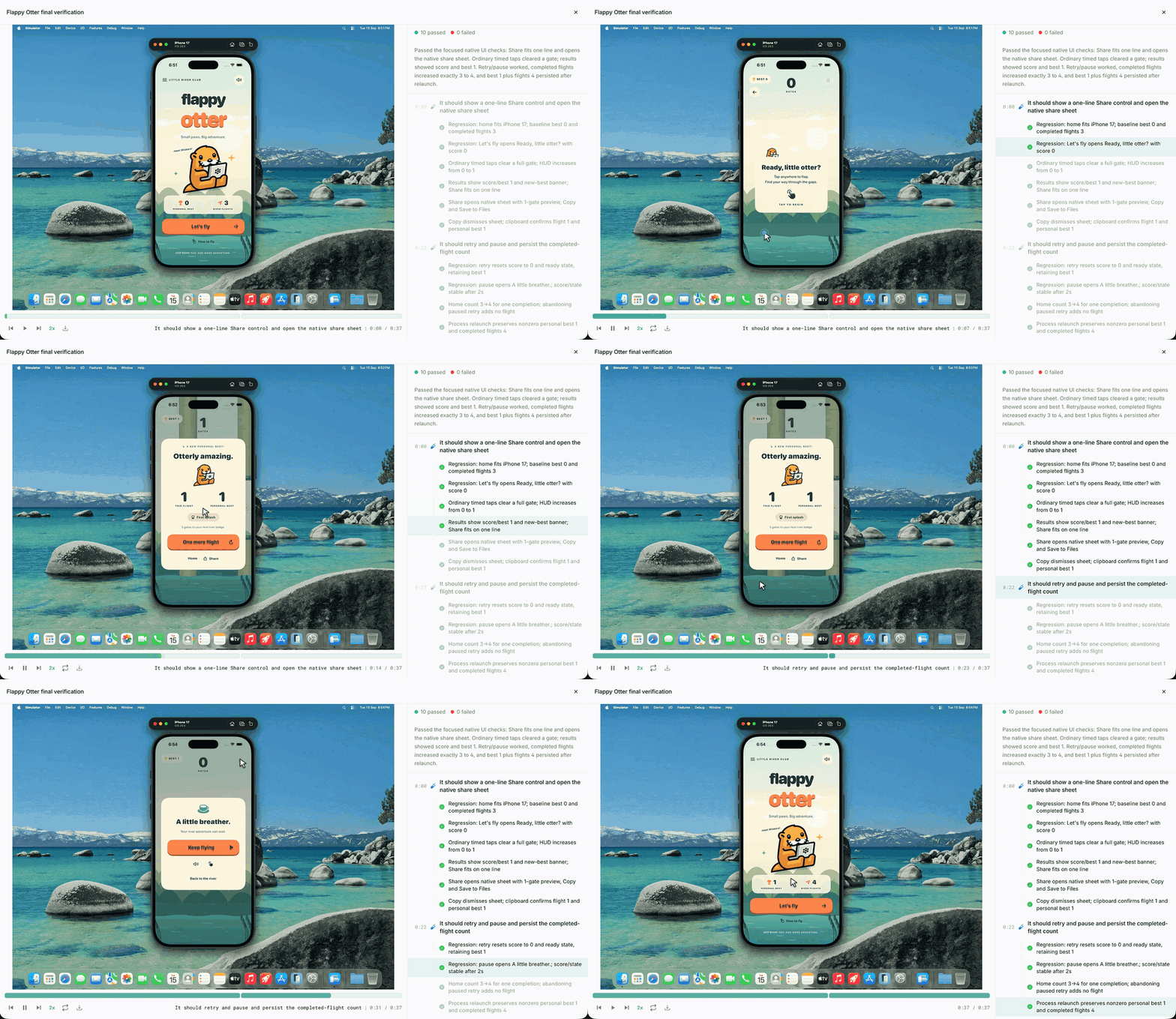
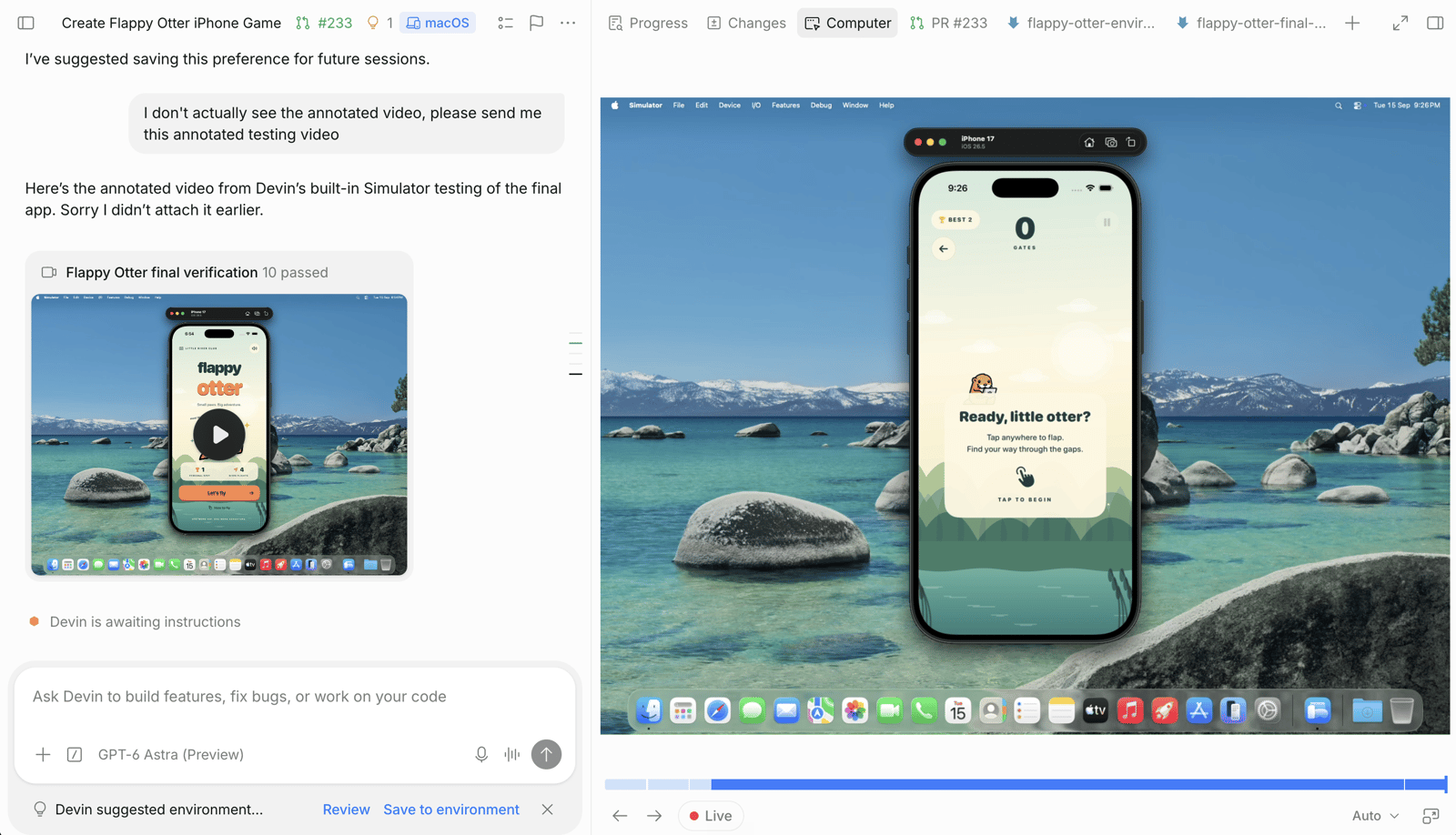
Step 3: Review and iterate
Continue building in the same session with more features: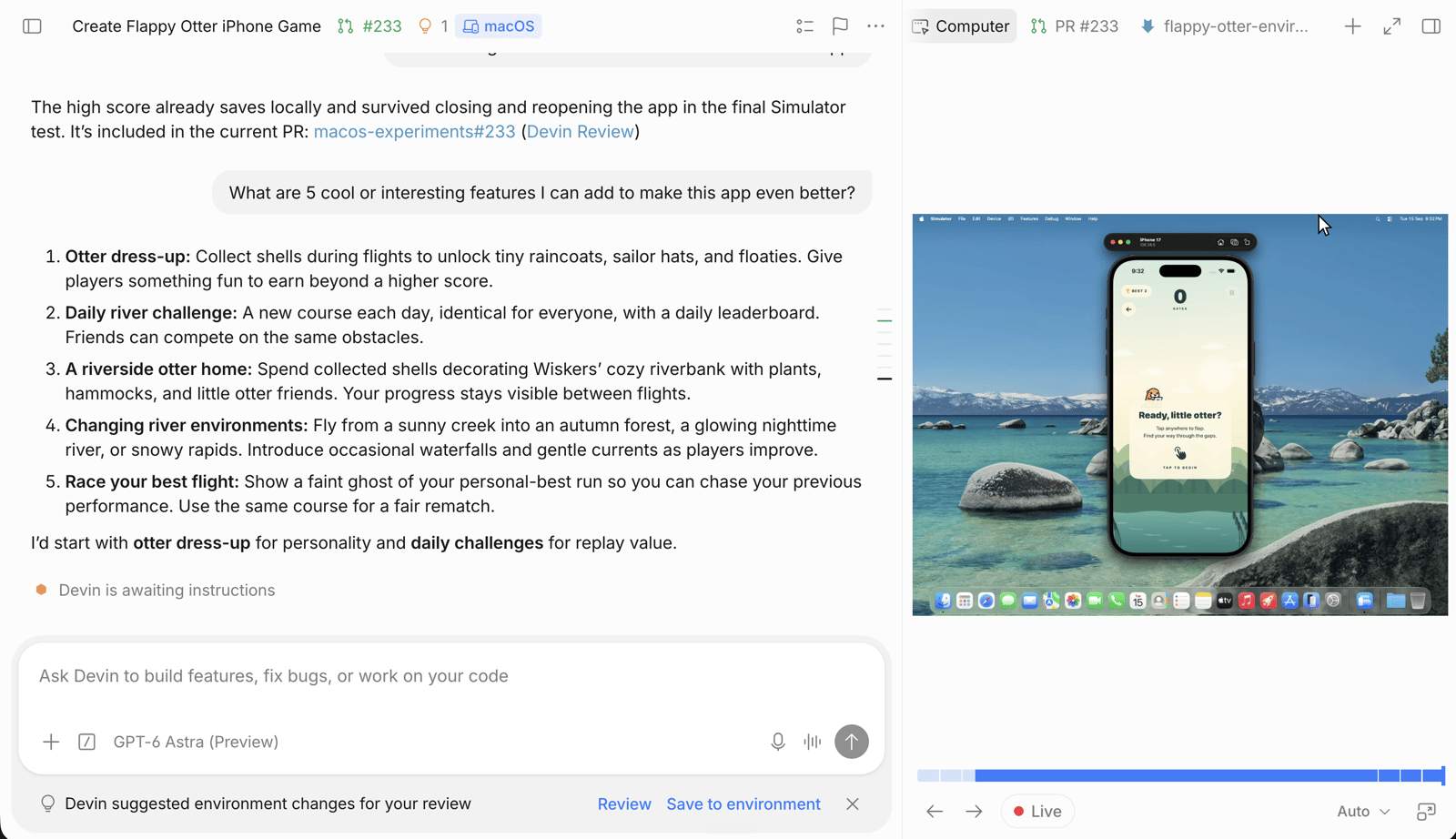
Optional: Ship a beta to TestFlight
To test on a real iPhone, see Upload iOS builds to TestFlight. See macOS support limitations to learn more about Devin macOS support.Next steps
TestFlight uploads
App Store Connect setup, API keys, and secrets for uploading builds
macOS support
Blueprint options, preinstalled tools, and troubleshooting for macOS sessions
Testing and recordings
How Devin tests your app and records the results